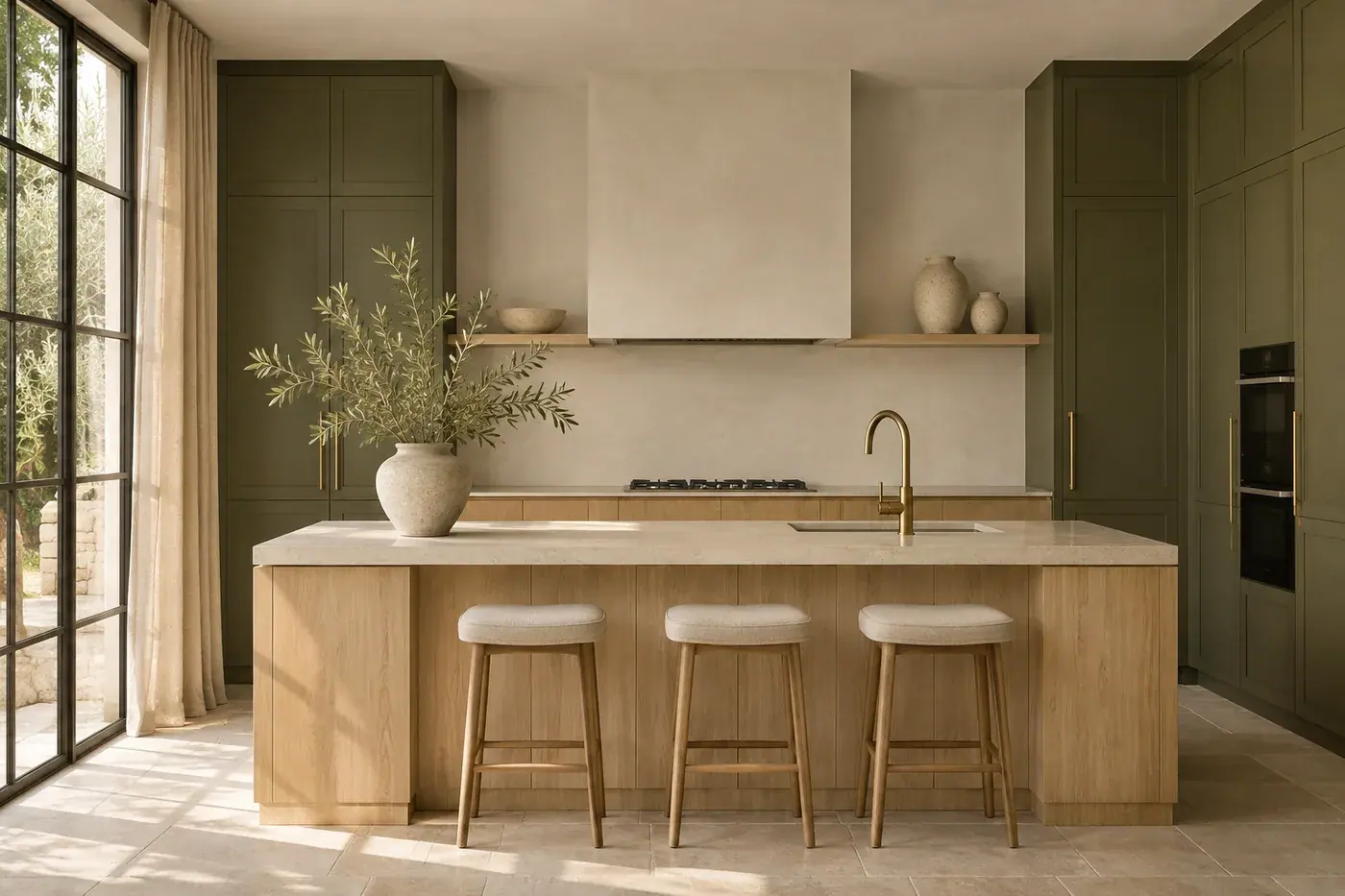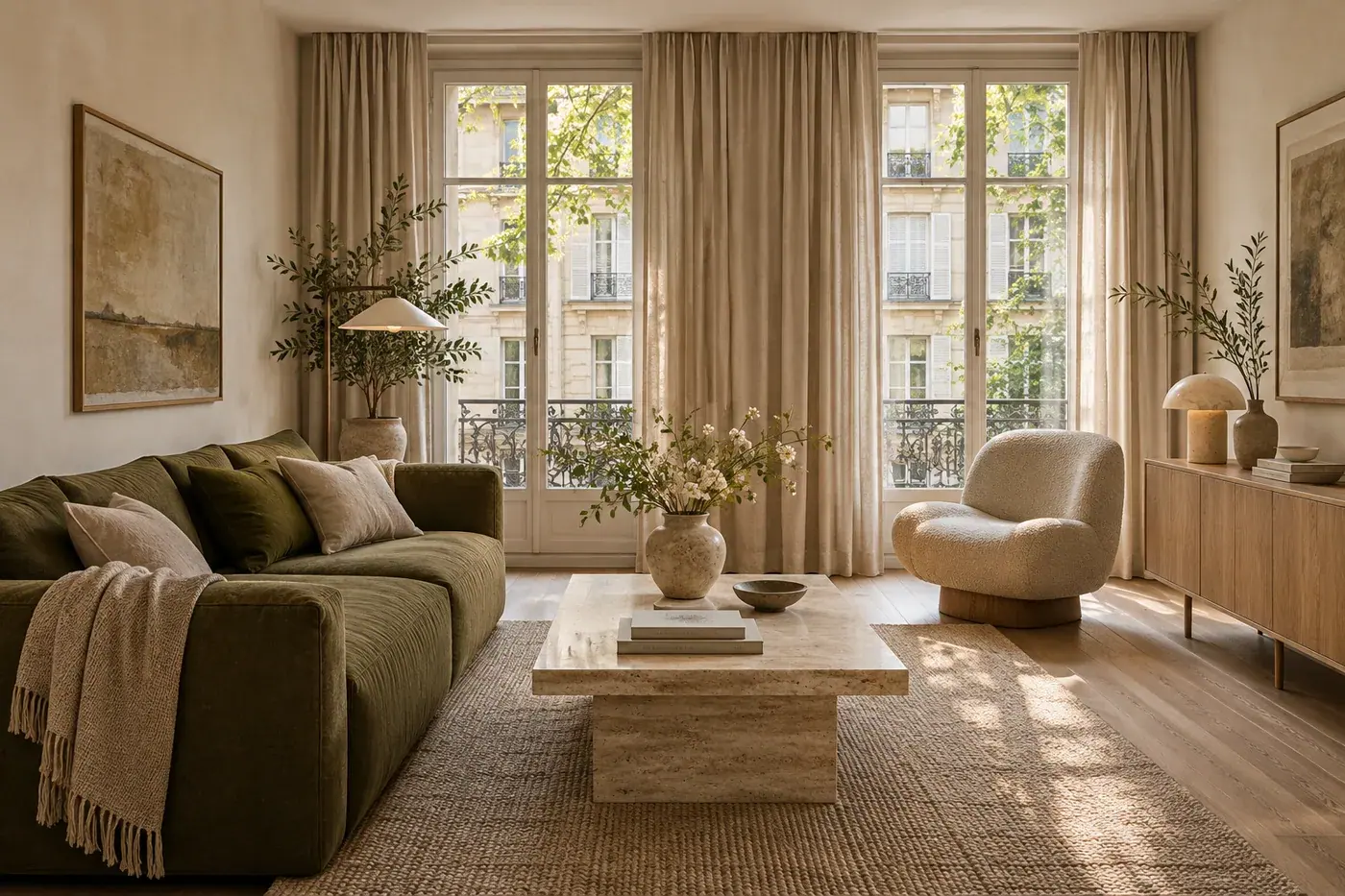
Work through a complete new look for the room in your photo.
See how wall panels, wallpaper or textured finishes could change your room. Upload a photo and describe the wall and material you want to explore.
Open another RoomTale tool and go straight to its workspace. Start with the change you want to make next.
Work through a complete new look for the room in your photo.
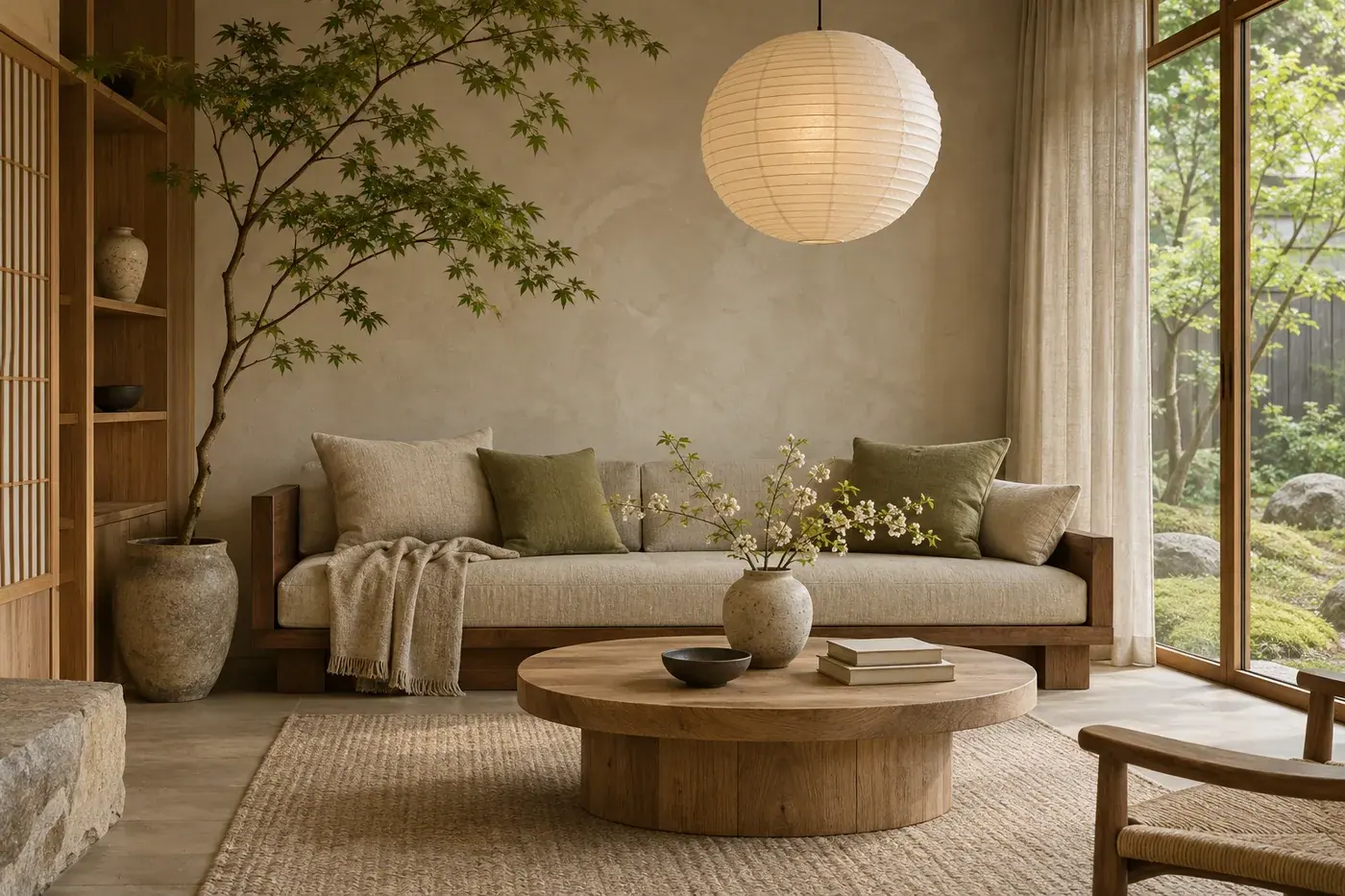
Try a different design language in a room you already know.
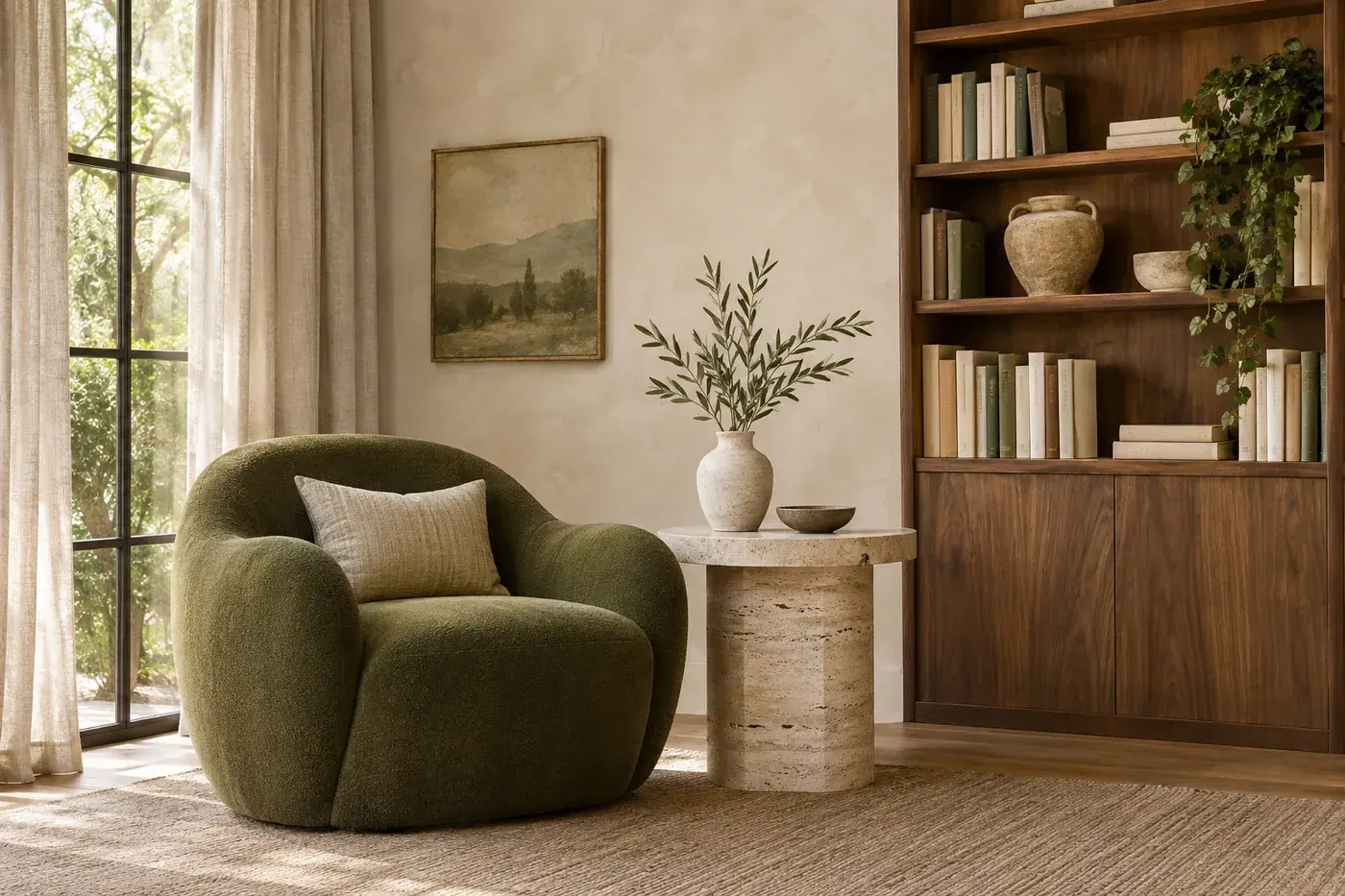
Bring rugs, curtains and accent pieces into one visual scheme.
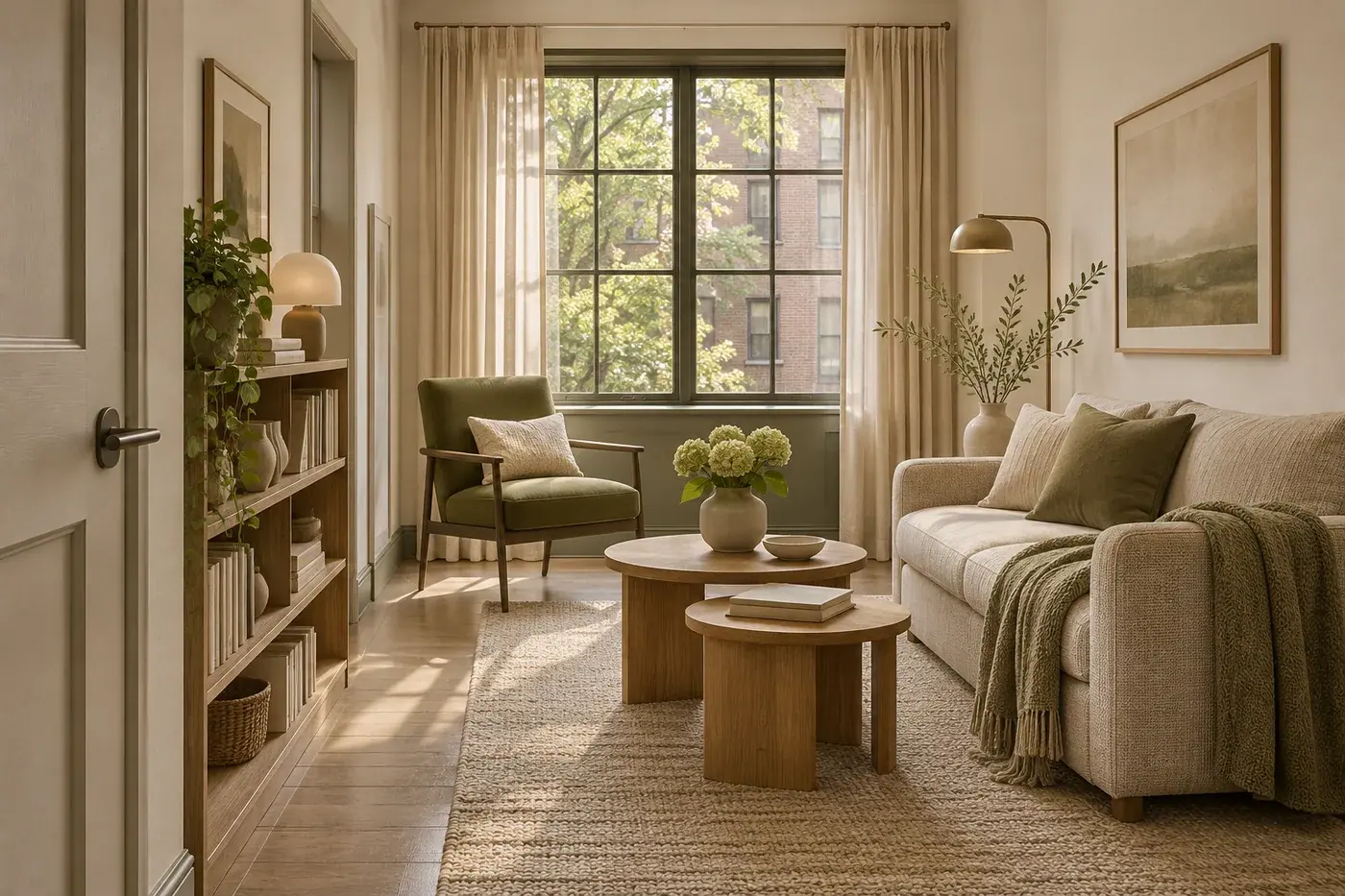
Explore how seating and storage could share the room.
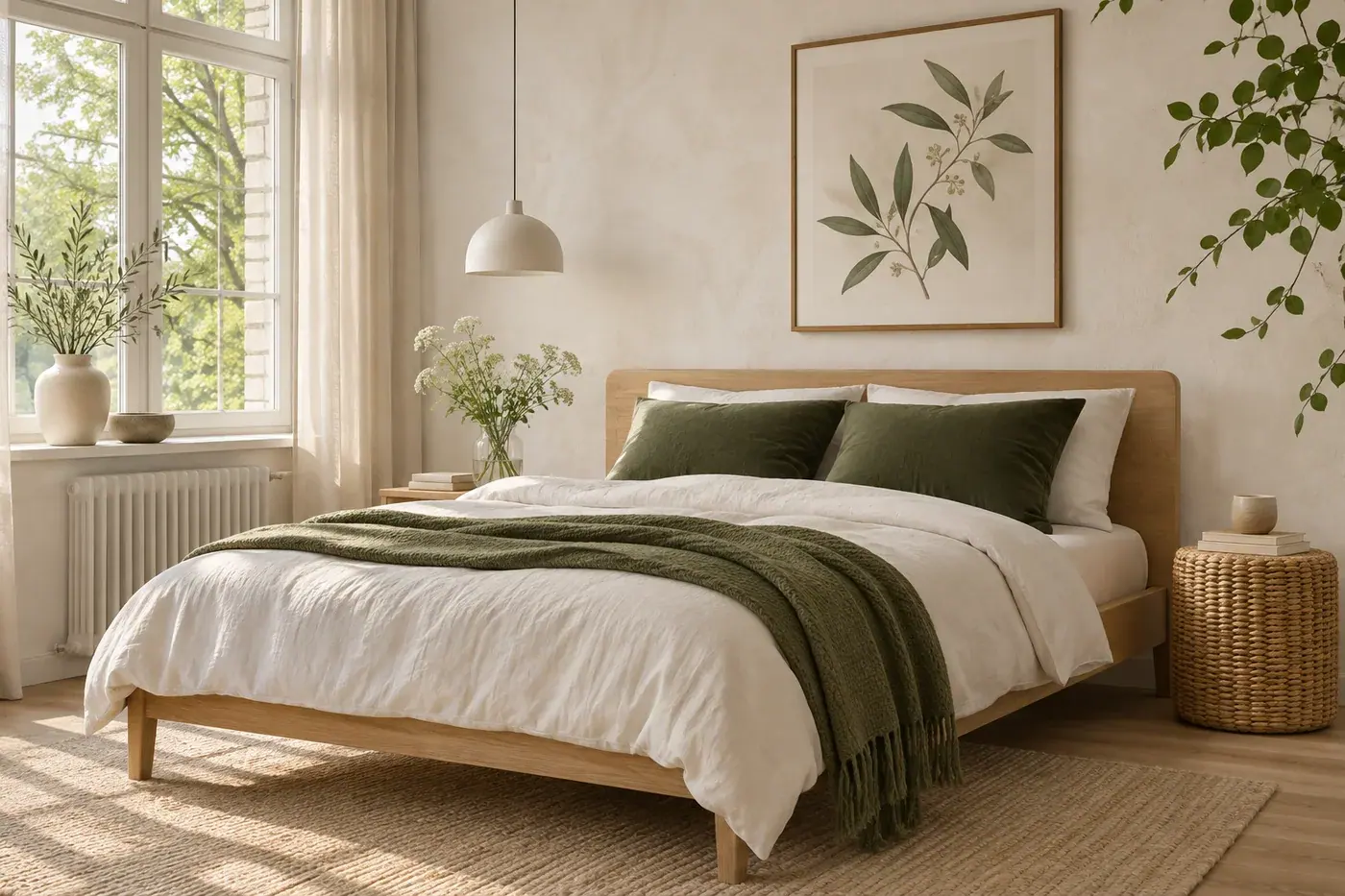
See a wall color beside the floor and furniture you already have.
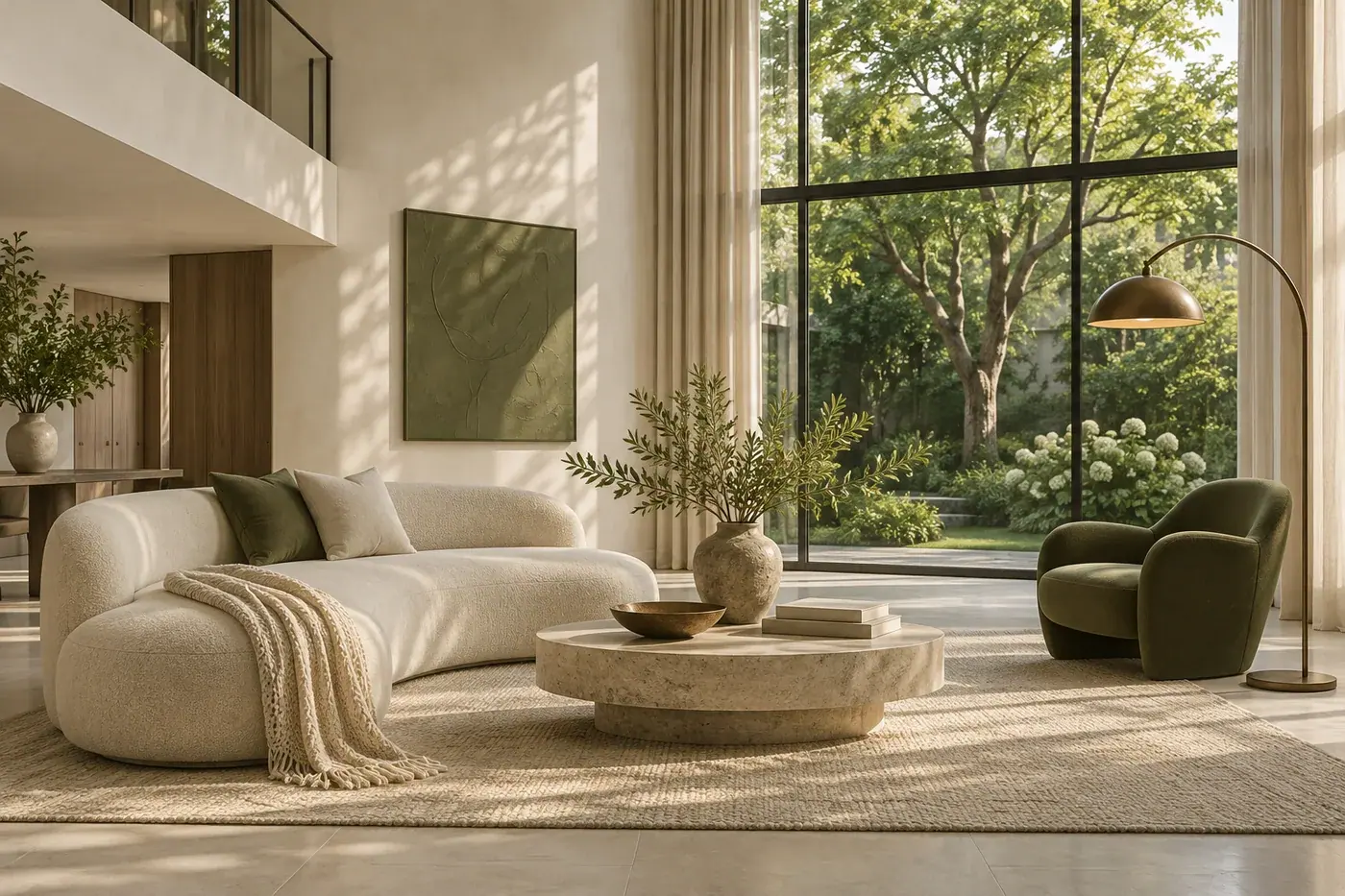
Help an empty room tell a more complete story.
1–6 / 12
Upload the room, choose a material and compare the new wall finish.
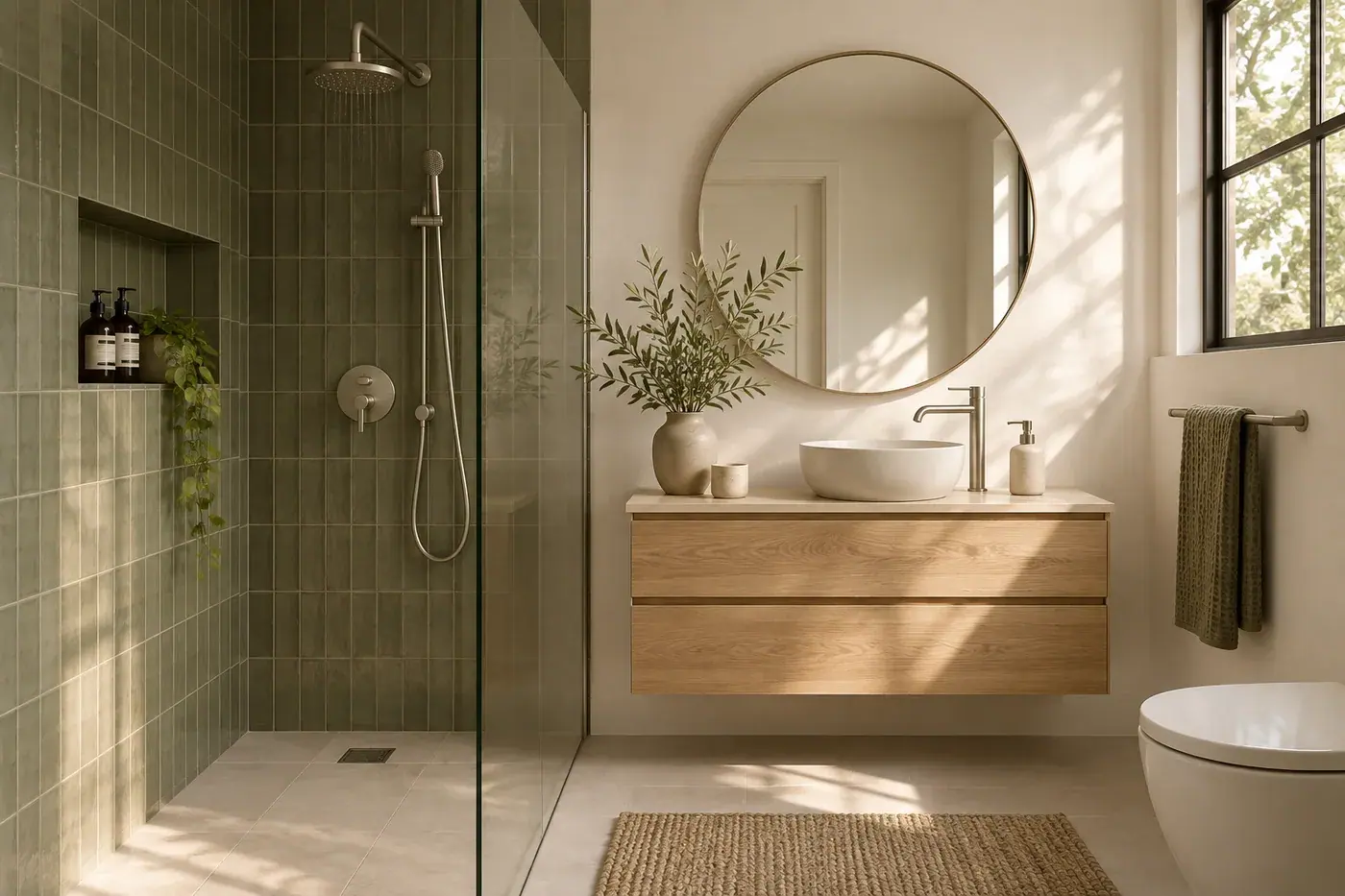
Use a clear room or furniture photo. Select the style and describe the change you want.
Try wall paneling, stone, wallpaper and accent colors on your room photo.
Read the credit estimate, generate a concept and look at the whole room before deciding what to refine.
Read the concept beside your starting photo
Choose a wall treatment such as wallpaper, paneling, brick or wood, then set a color. The tool requests changes to visible walls while preserving openings, floor, ceiling and furniture. It does not specify installation layers or construction quantities.
Try wall paneling, stone, wallpaper and accent colors on your room photo. Choose a reference, refine the options, then compare the result in your own space.
Try wall paneling, stone, wallpaper and accent colors on your room photo. Review the generated image and refine your next version with a more specific brief.
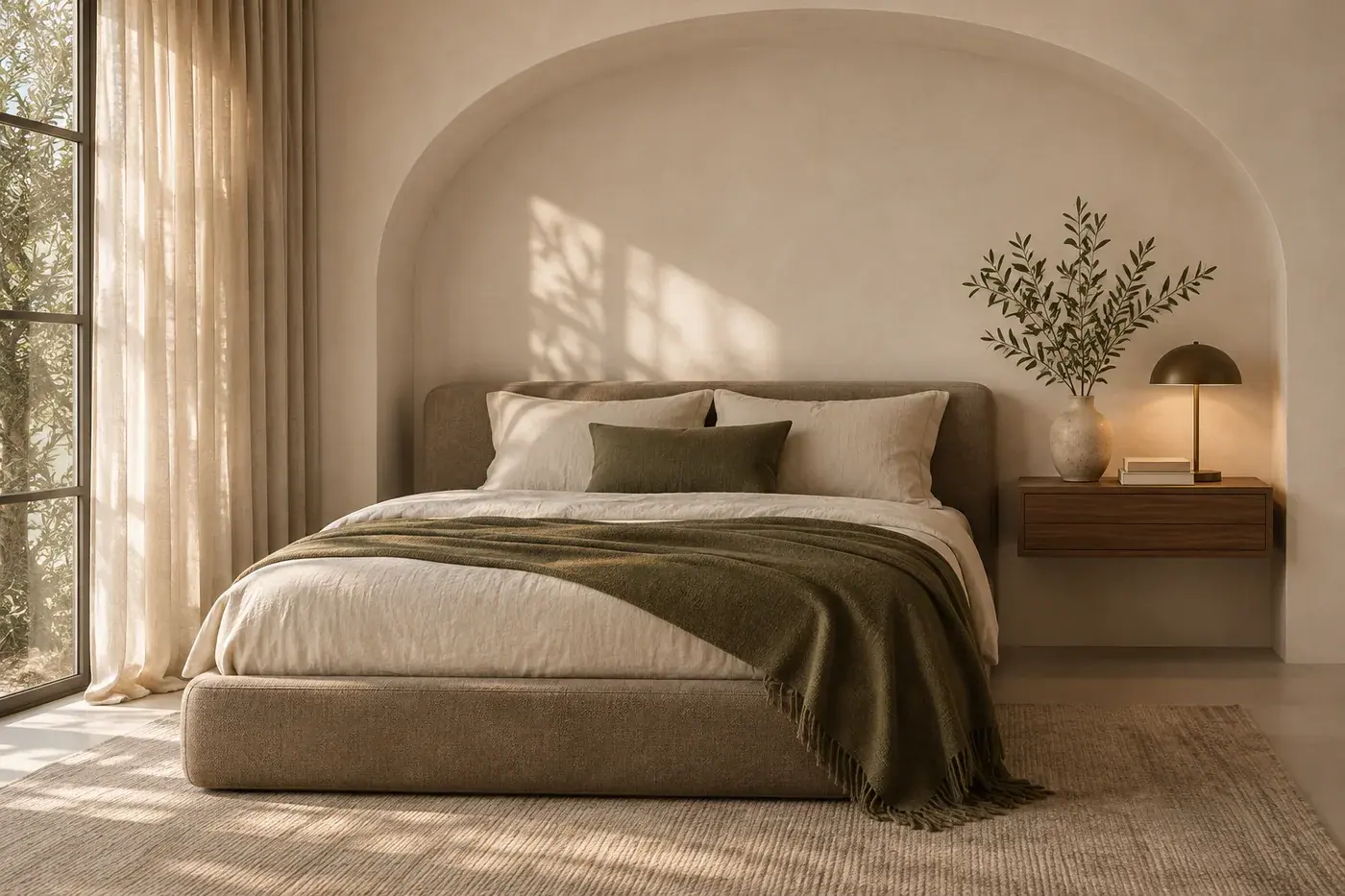
Try wall paneling, stone, wallpaper and accent colors on your room photo. Choose a reference, refine the options, then compare the result in your own space.
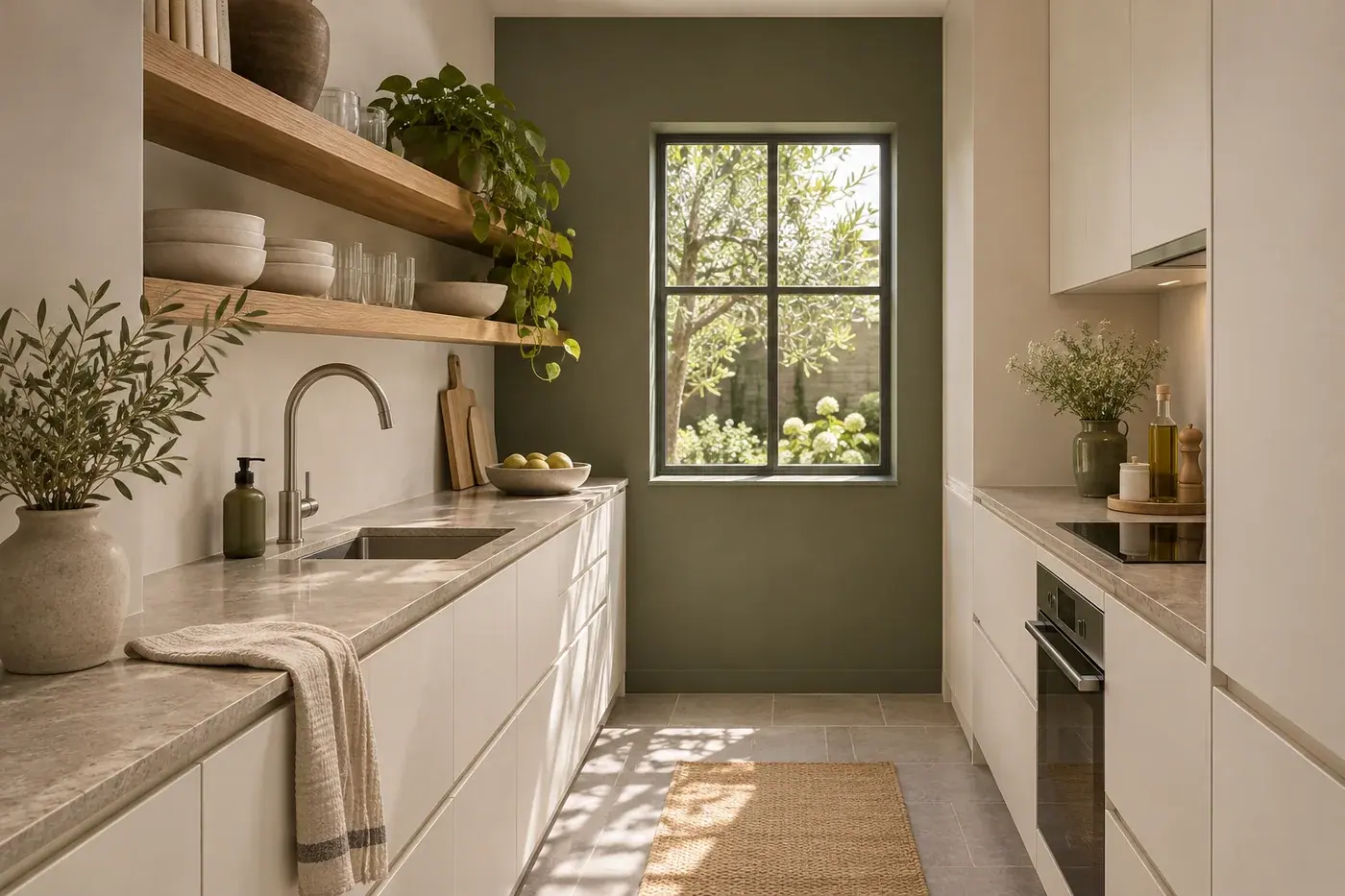
Try wall paneling, stone, wallpaper and accent colors on your room photo. Review the generated image and refine your next version with a more specific brief.
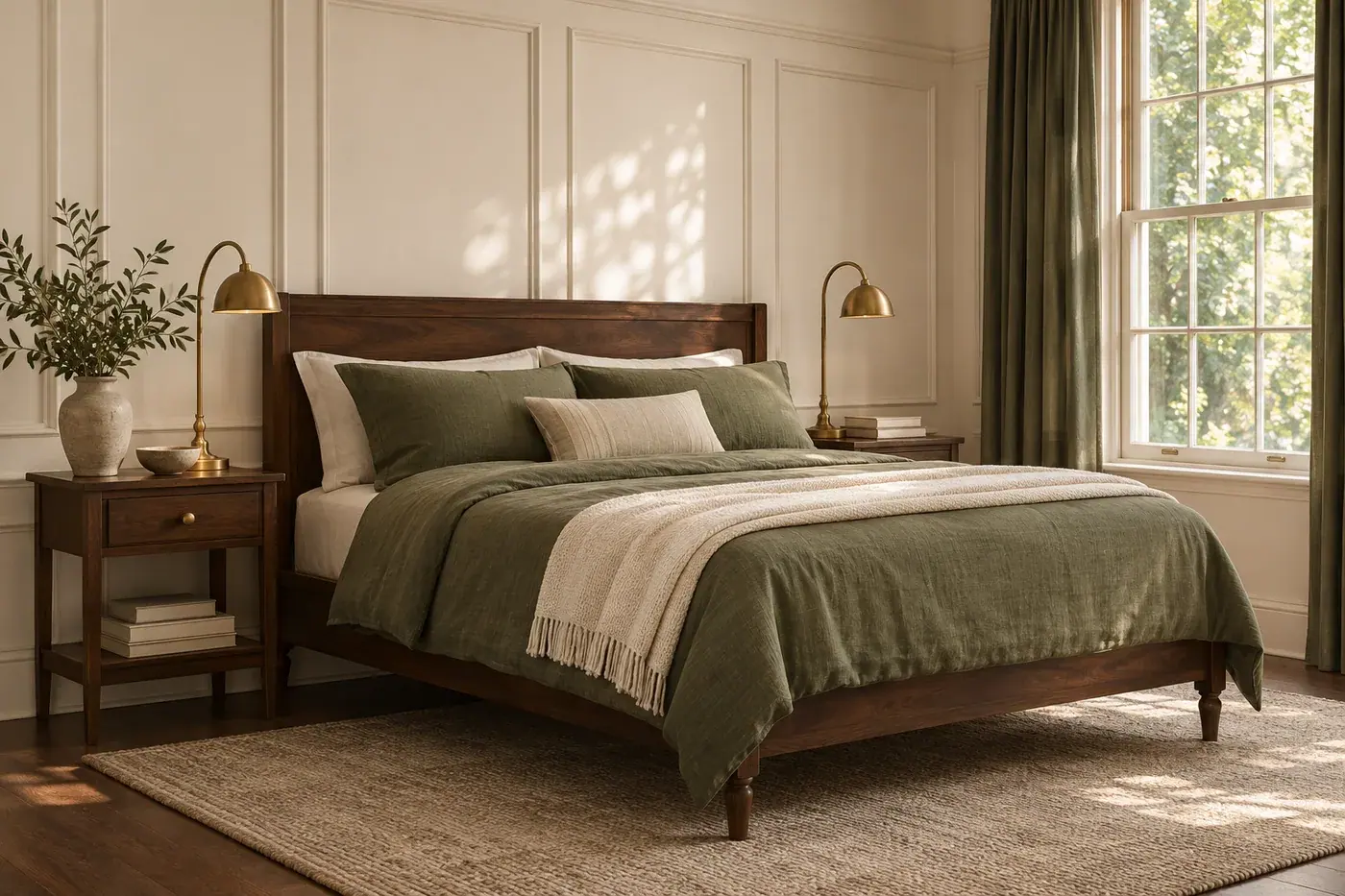
Use a clear room or furniture photo. Select the style and describe the change you want.
Start with the habits the room needs to support. Use a study to decide what to keep and what deserves a different arrangement.
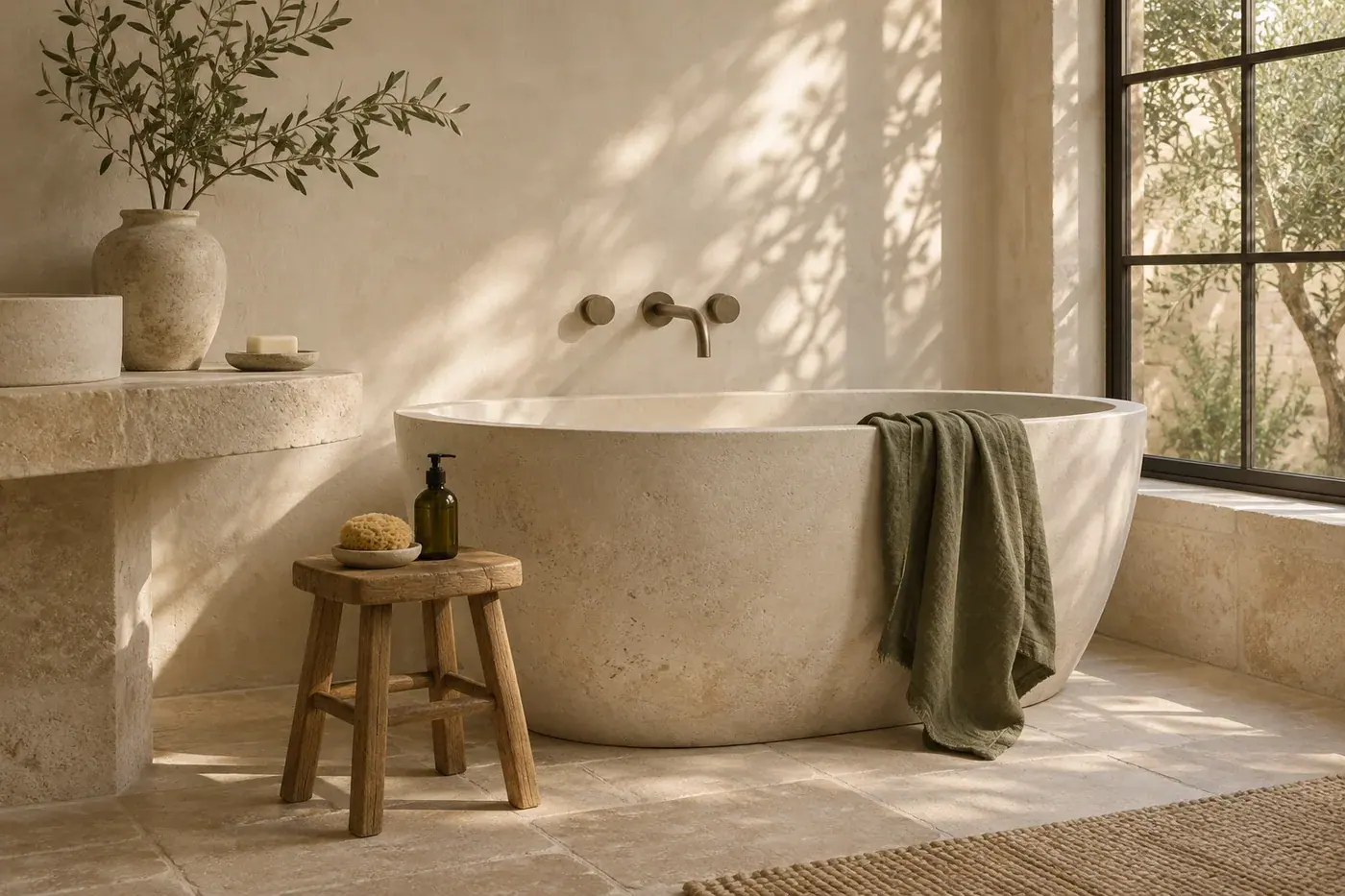
Focus a design brief on movable furniture and soft furnishings. Explore how the room could feel more personal around the pieces you already have.
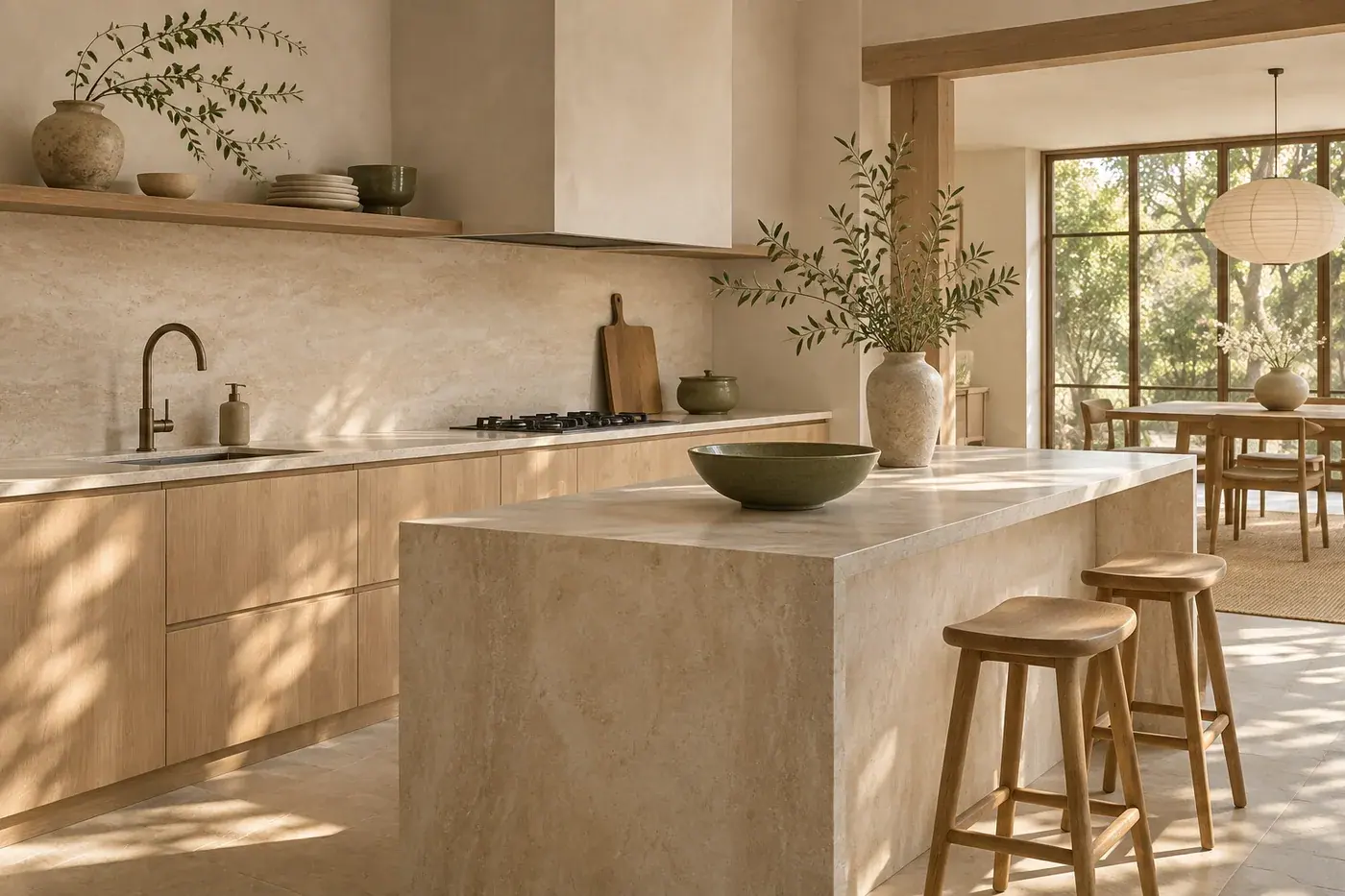
Share the original photo with the concept you prefer. Point out the colors, finishes or arrangement you want to develop in a measured design.
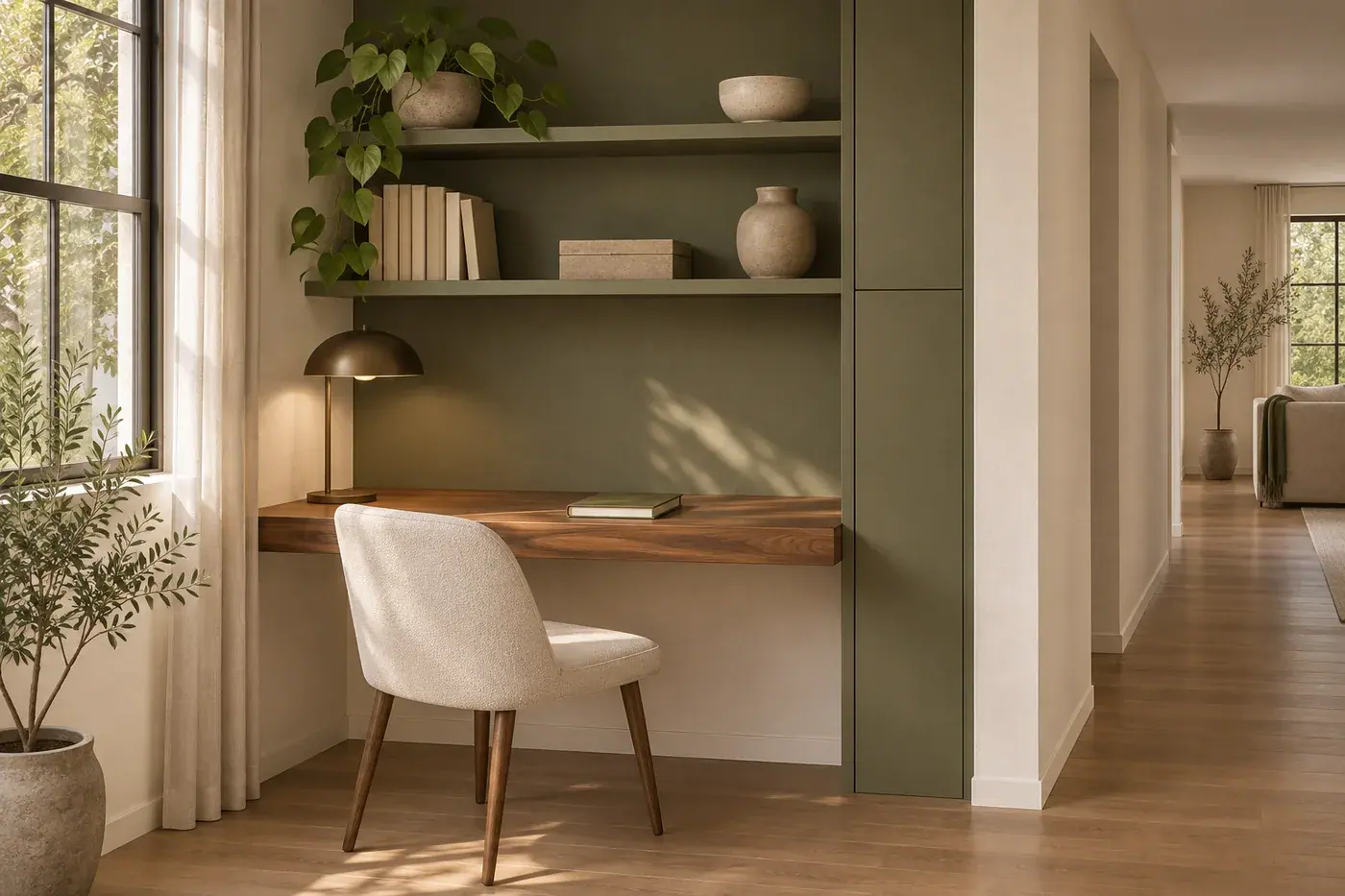
Use a labeled AI concept to explain an empty room’s possible use. Keep its original photograph available so viewers can understand the proposed changes.
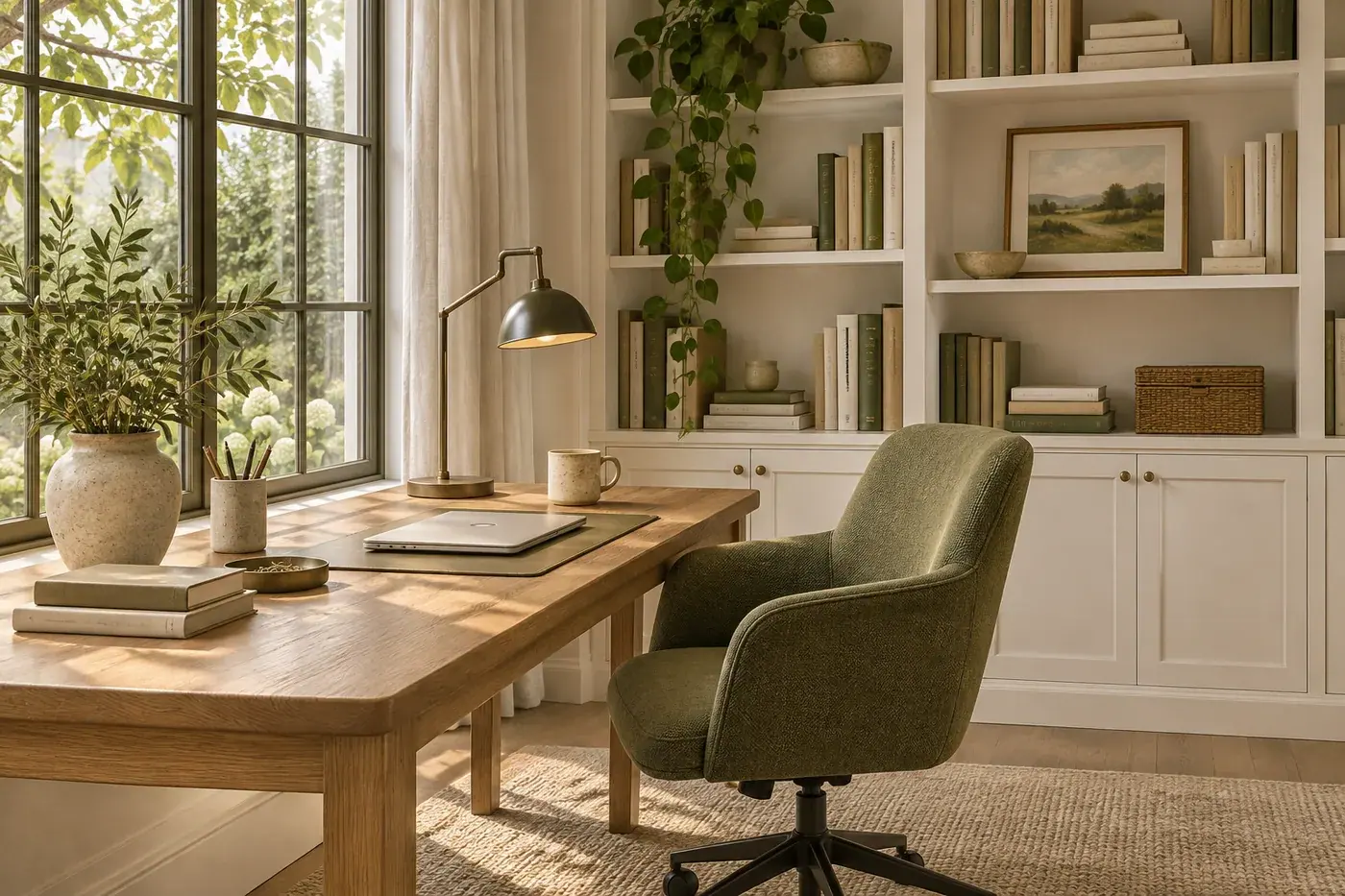
Studio studies
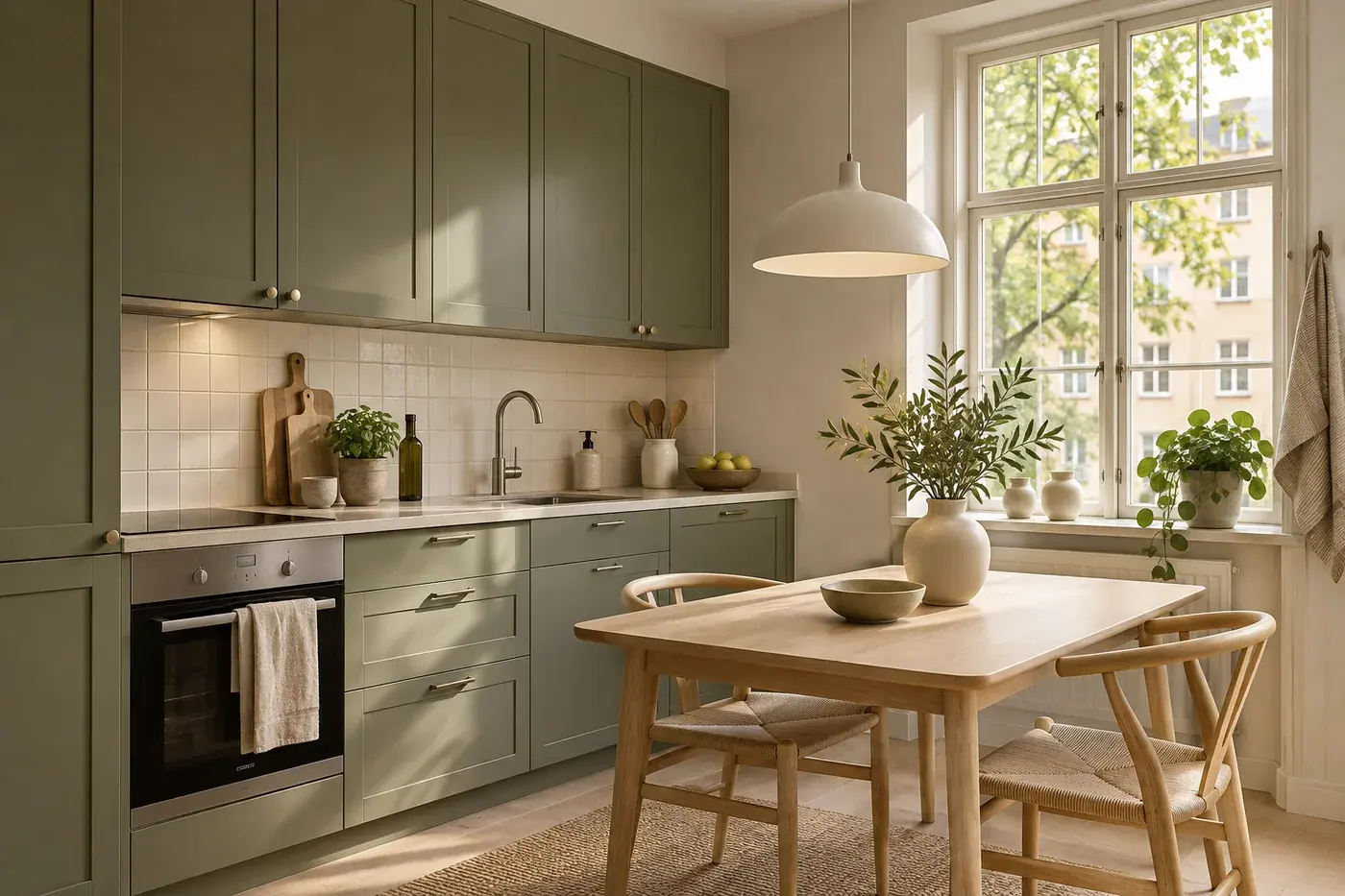
Try wall paneling, stone, wallpaper and accent colors on your room photo. Choose a reference, refine the options, then compare the result in your own space.
Choose credits around your next project: one room, a few layout studies or a regular design workflow. Check the billing period and total before choosing a plan.
Loading designs...
For first ideas and a fresh perspective on your space.
Billed monthly · auto-renews
Credits granted each paid month. Manage your subscription in Billing.
For regular redesigns and exploring more possibilities.
Billed monthly · auto-renews
Credits granted each paid month. Manage your subscription in Billing.
For larger projects, multiple rooms and client presentations.
Billed monthly · auto-renews
Credits granted each paid month. Manage your subscription in Billing.
Review AI concepts before purchasing or building. Output is an image, not editable CAD or a measured construction drawing.
Contact supportYes. Upload your room photo, choose a material such as wood, stone or wallpaper, and describe the wall to change. Review the credits and compare the generated wall treatment with your original.
The wall design tool explores materials and surface treatments, such as panels or wallpaper. The paint color visualizer focuses on color changes. Use material samples and real measurements before ordering a wall finish.
Describe the change you want in everyday terms and identify the pieces that should remain. A specific request gives you something concrete to review in the result. Try wall paneling, stone, wallpaper and accent colors on your room photo.
Review AI concepts before purchasing or building. Output is an image, not editable CAD or a measured construction drawing.
AI generation uses 10 credits per 1K image or 15 per 2K image. Choose 1–4 images; the button shows the total before submission. Credits are reserved when a task is created and returned if that task fails. A new variation is a new paid task.
Generate another study from the same original photo, or use a completed result as the next reference. You can request 1–4 images with the available controls. Read the credit total before each new request.
The workspace shows the task state, and signed-in tasks remain in My Projects. Processing time varies with output settings and the service queue. Check the existing task before submitting the same brief again.
Download the completed image and use it beside your original as a design reference. Signed-in tasks are also available in My Projects. The image does not include editable CAD geometry or an exact shopping list.
Your designs are not automatically published in Explore. Uploaded images and preferences are processed by the generation service, and image files may be accessible through their storage links. Keep those links private and avoid uploading information you do not want processed. For help, use the feedback button or support@roomtale.app.
The uploaded photo is used as a reference, and the generated design is a separate image. The original file on your device stays unchanged. Keep it to compare the design and review any details that the AI may reinterpret.
Compare a material or texture in the context of your room.