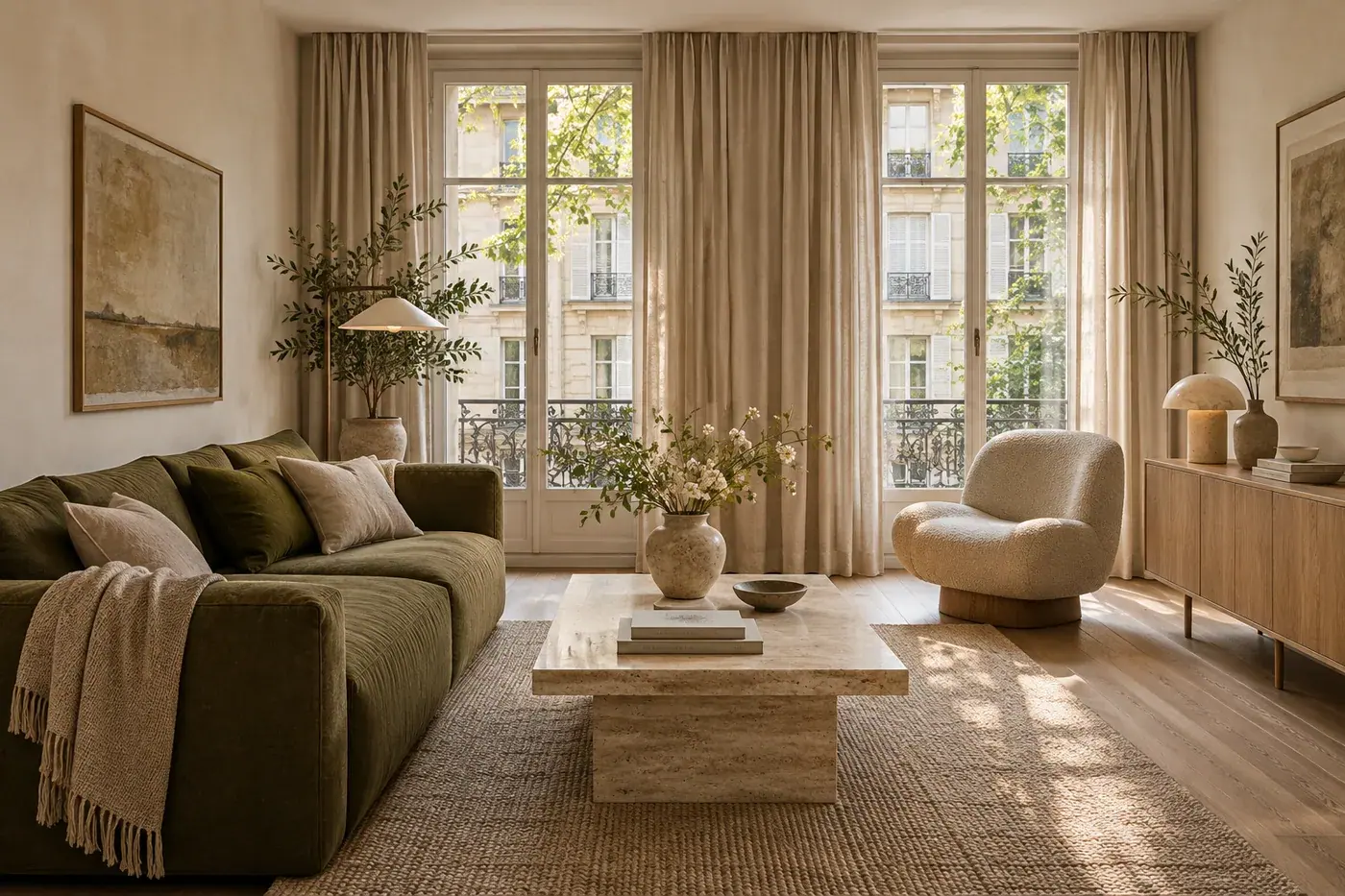
Work through a complete new look for the room in your photo.
Change sky in exterior photos to preview daylight, sunset or cloudy conditions. Upload a building photo and compare lighting concepts for your presentation.
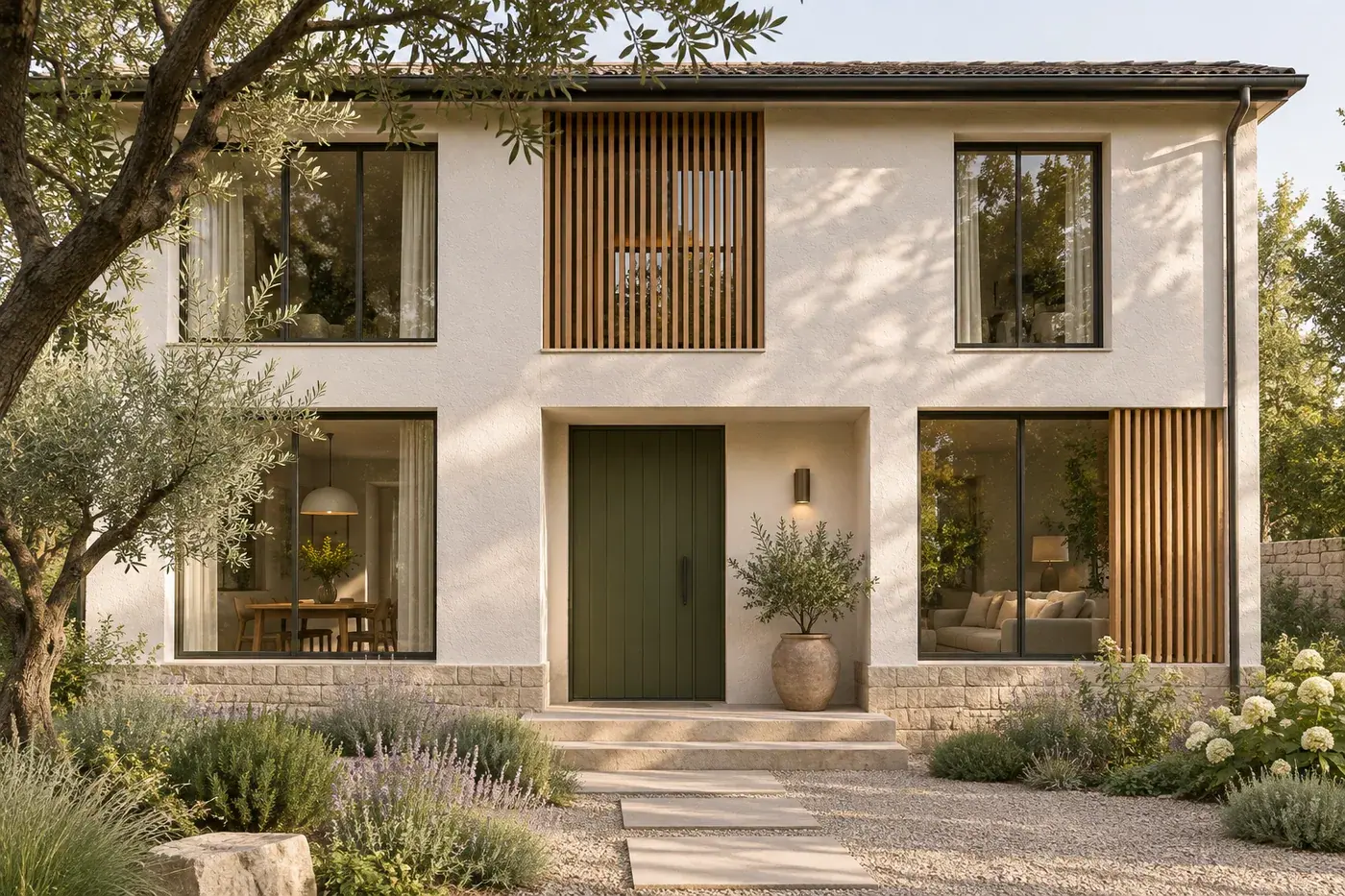
Open another RoomTale tool and go straight to its workspace. Start with the change you want to make next.
Work through a complete new look for the room in your photo.
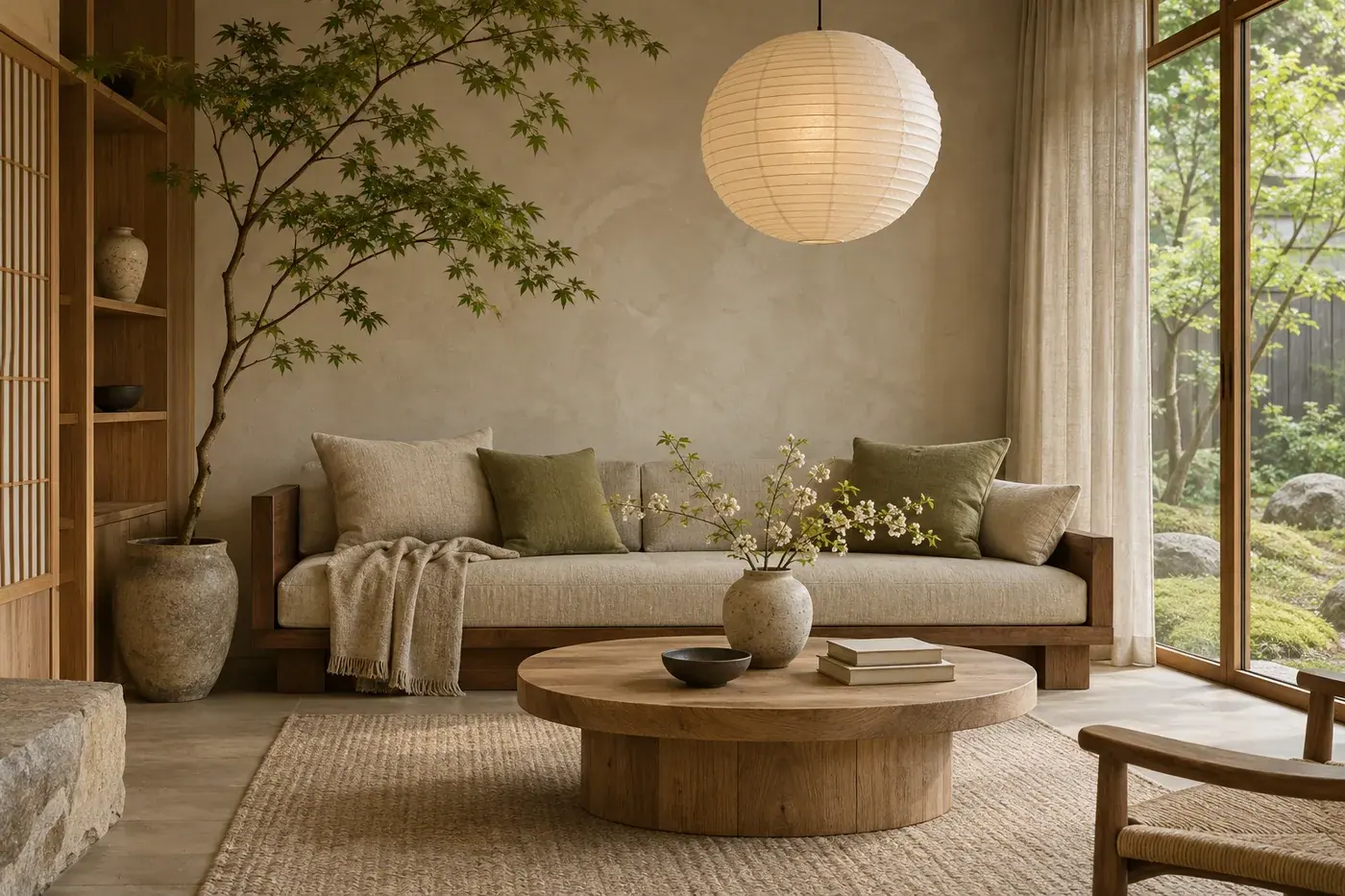
Try a different design language in a room you already know.
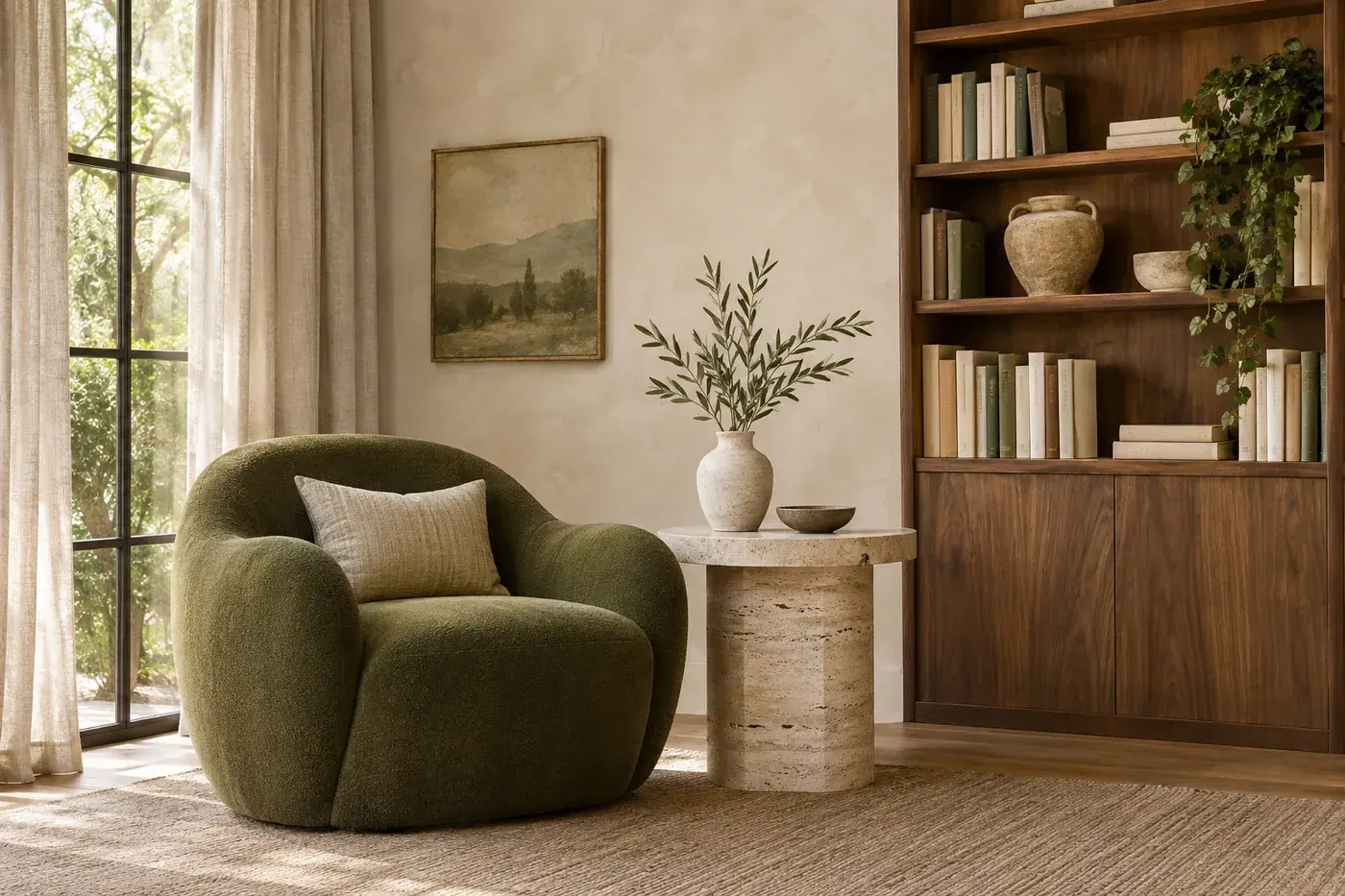
Bring rugs, curtains and accent pieces into one visual scheme.
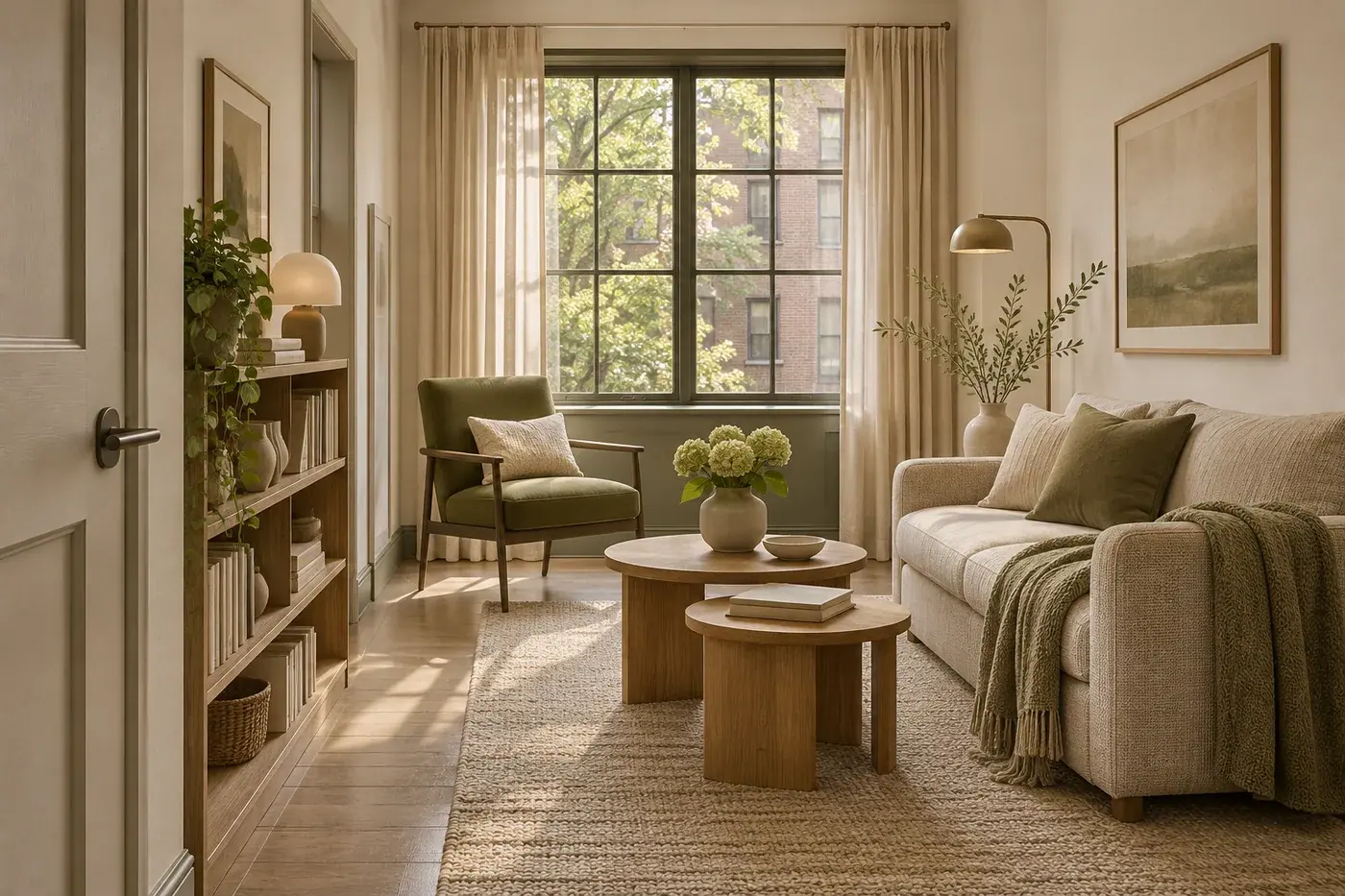
Explore how seating and storage could share the room.

See a wall color beside the floor and furniture you already have.

Help an empty room tell a more complete story.
1–6 / 12
Keep your brief focused and compare concepts before committing to a design.
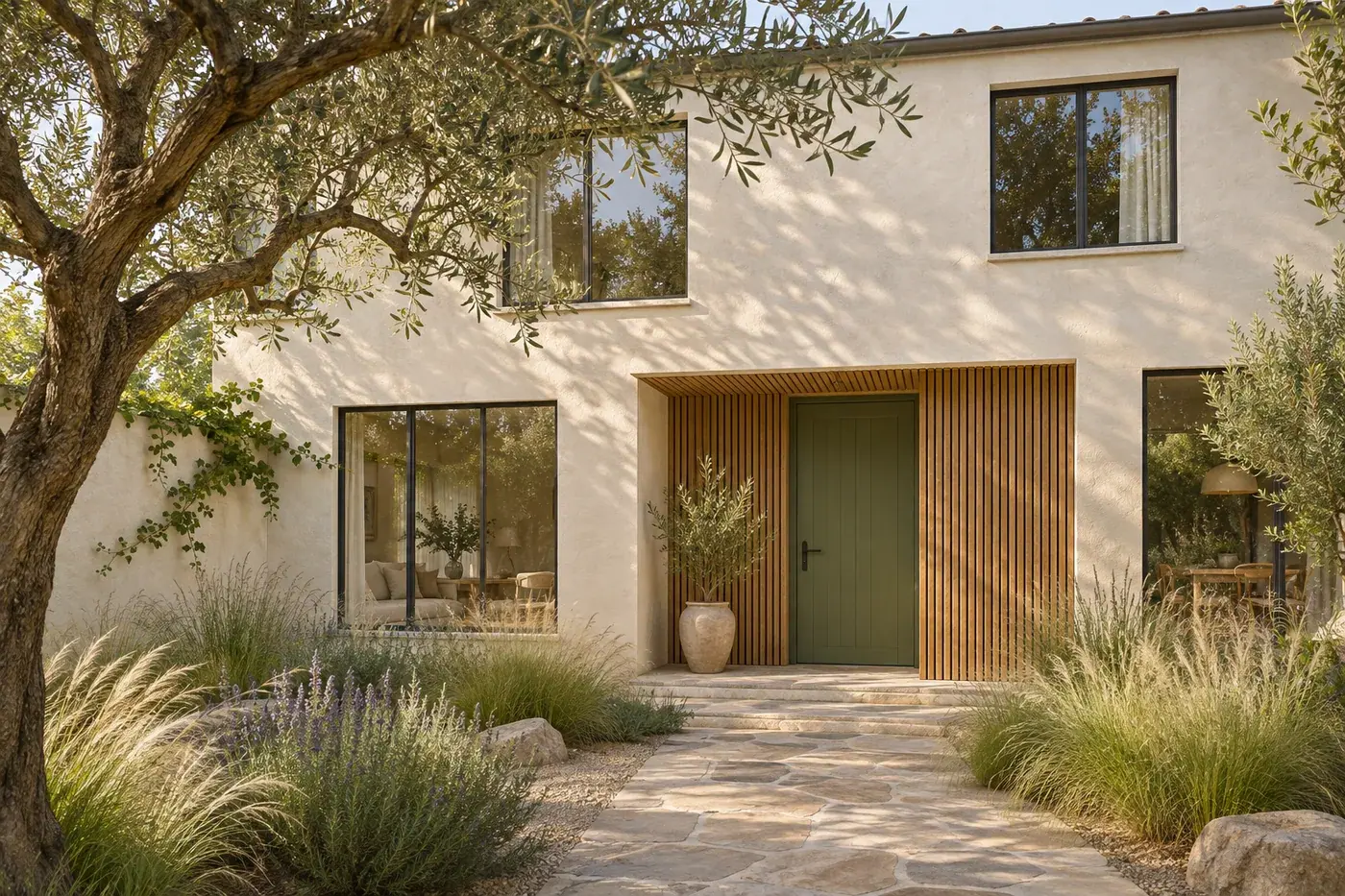
Upload one clear JPG, PNG or WebP image that shows the area or drawing you want to work on.
Choose daylight, sunset or cloudy weather. Describe any lighting preferences while keeping the building and foreground intact.
Sign in, confirm the displayed credit cost and generate. Review the result against your reference before deciding what to refine.
Once the result has been saved, download the image or reopen it from your account history. Use Refine to reuse its reference and settings.
Yes. Upload an exterior photo and choose daylight, sunset or cloudy weather. The AI creates a new lighting and sky concept, so review building details as well as the atmosphere.
Keep the building and foreground as the visual anchor while changing sky and related illumination.
Try a neutral daylight view or warmer sunset for your property presentation.
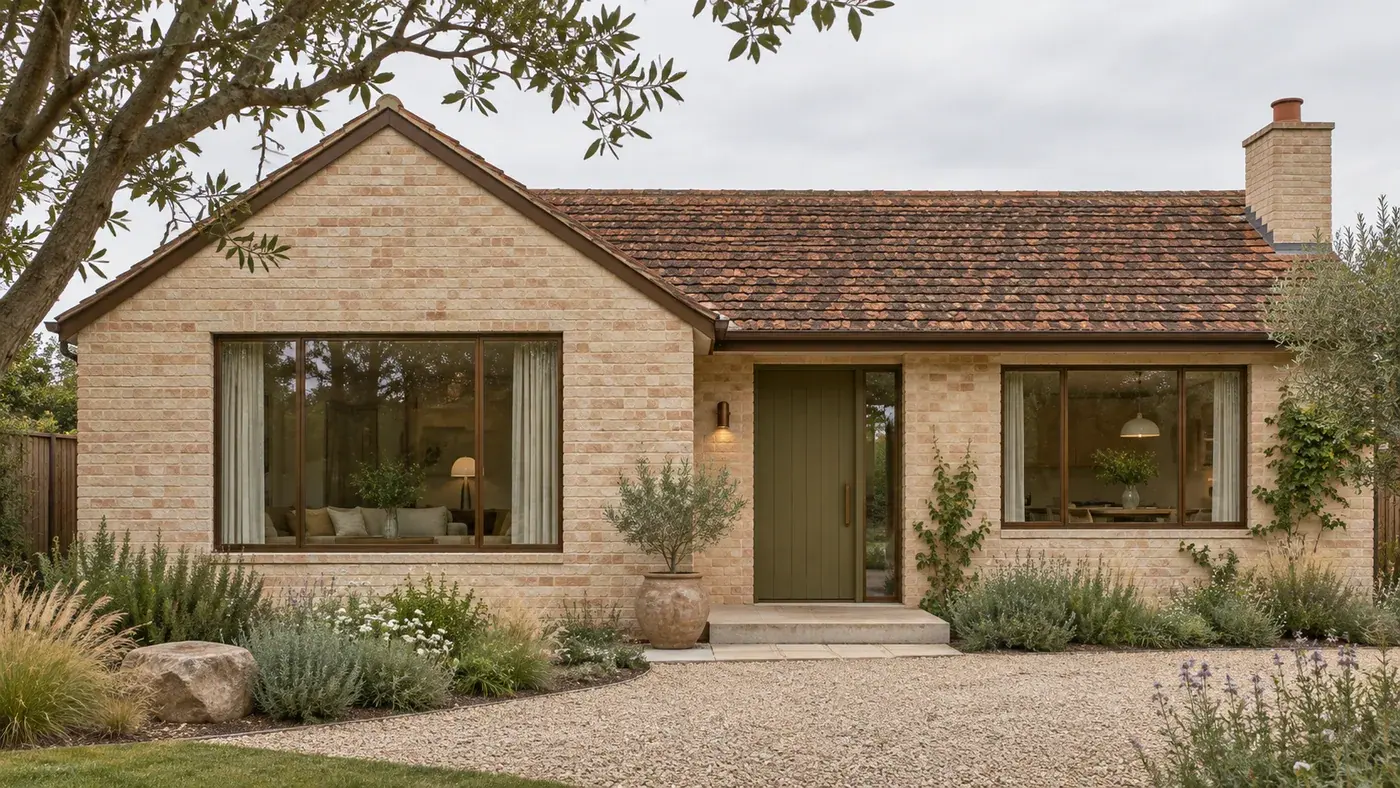
Change the sky and related illumination while explicitly preserving architecture, materials, plants and the camera.
Completed images are saved to permanent storage and linked to your account history. Reopen a concept, download it, or reuse its original reference and settings.
Use clearly labelled concept images to compare options and prepare a more focused design conversation.
Explore a brighter daytime atmosphere around an exterior building photo.
Compare a warmer sky and lighting concept for an architectural presentation.
See an alternative sky mood for the same exterior reference.
Compare weather variants and check building details before sharing a concept.
Studio studies
Change sky in exterior photos to preview daylight, sunset or cloudy conditions. Upload a building photo and compare lighting concepts for your presentation.
Choose credits around your next project: one room, a few layout studies or a regular design workflow. Check the billing period and total before choosing a plan.
Loading designs...
For first ideas and a fresh perspective on your space.
Billed monthly · auto-renews
Credits granted each paid month. Manage your subscription in Billing.
For regular redesigns and exploring more possibilities.
Billed monthly · auto-renews
Credits granted each paid month. Manage your subscription in Billing.
For larger projects, multiple rooms and client presentations.
Billed monthly · auto-renews
Credits granted each paid month. Manage your subscription in Billing.
AI concept image only. Verify structure, dimensions, materials and local requirements with a qualified professional before building.
Contact supportYes. Upload an exterior photo and choose daylight, sunset or cloudy weather. The AI creates a new lighting and sky concept, so review building details as well as the atmosphere.
The operation instructs the model to keep the building, surfaces, plants and camera unchanged while replacing the sky and harmonizing light. Review the generated image for unintended detail changes.
Use one JPG, PNG or WebP image up to 10 MB and 40 megapixels. For drawing-based tools, upload an image export of your own drawing. Architecture can also start from a written brief.
Nano-2 costs 10 credits per 1K image or 15 credits per 2K image. The total is shown before generation. Failed tasks return their reserved credits.
No. These are raster concept images, not measured CAD drawings or engineering documents. Have a qualified professional check all dimensions, structure and approvals.
Use the controls available for this tool and add a specific brief. Describe the parts to preserve and the changes you want. Sky editing uses sky and lighting preferences rather than facade style or material controls.
Yes. Choose one to four outputs and review the total credit cost before generating. Each output is saved as its own task so you can reopen and download it separately.
Timing depends on the provider, image resolution and queue. The workspace shows progress, and your account history keeps the task while it is being generated or saved.
Completed images are copied to permanent storage before the task is marked successful. Your history and download link use the saved image rather than a temporary provider link.
Confirmed generation failures return reserved credits. A temporary storage failure keeps the task pending and retries automatically. If saving cannot be completed within the retry window, the task fails and its reserved credits are returned.
Change sky in exterior photos to preview daylight, sunset or cloudy conditions. Upload a building photo and compare lighting concepts for your presentation.