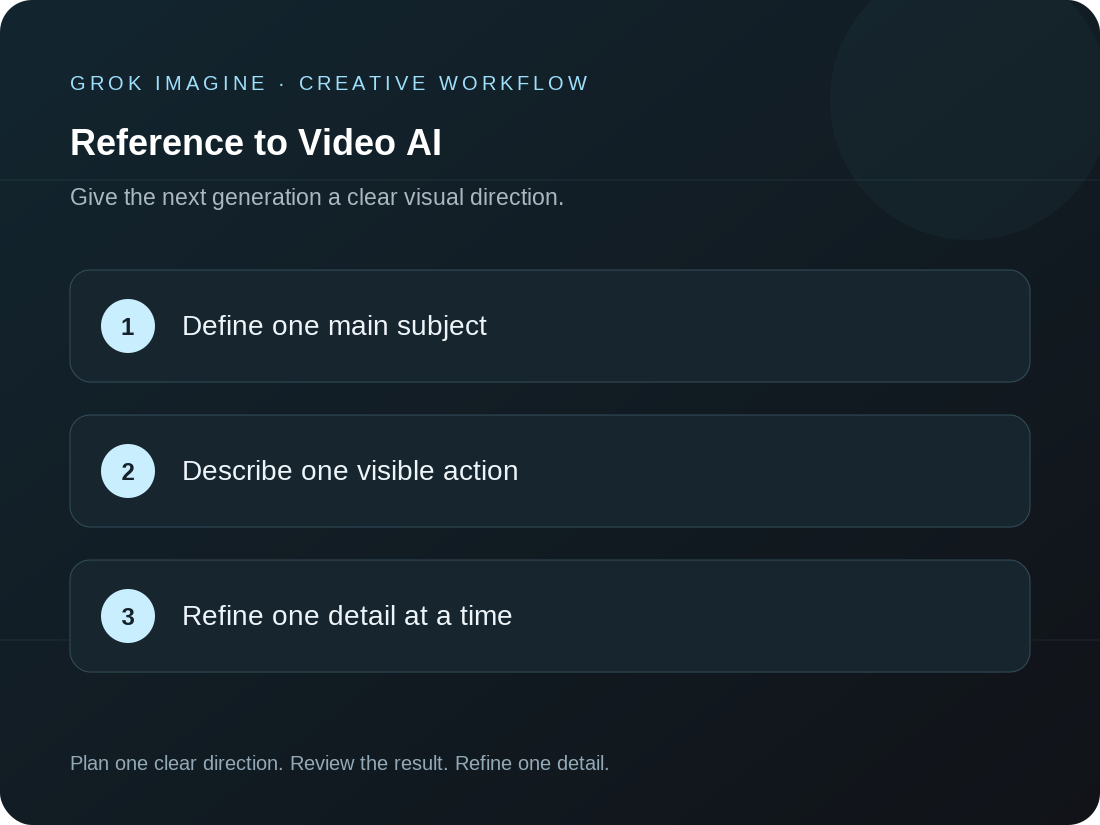
Guide a new video with existing footage. Add a reference clip, describe the scene and motion you want, and review supported model settings before generating.
RoomTale
01
Choose a readable reference
Pick footage with a clear subject and visible action to make your direction easier to describe. A starting brief could be: Use the reference movement as loose guidance; create a cinematic forest path at dawn with a gentle camera arc. The reference-video workflow accepts image or video material supported by the composer, with a prompt describing the new direction. Actual inputs depend on the selected model and the upload options shown in the interface.
RoomTale
02
Describe the new setting
Explain what changes in the environment, lighting, or visual style without expecting a frame-for-frame copy. A starting brief could be: Keep the walking pace, shift the setting to a misty seaside promenade with cool morning light. Reference media can guide a subject, composition, or visual direction; it does not promise a frame-by-frame copy. Review the result and make sure you have permission to use the source material.
RoomTale
03
Focus on one action
A single recognizable movement makes a generated take easier to compare with your reference. A starting brief could be: A person turns toward the camera and takes one step forward, steady framing, subtle dolly-in. Settings vary by model. Before submitting, review the supported inputs, aspect ratios, output options, and credit estimate shown in the composer. After generation, inspect the subject, text, product details, and overall composition before saving a result.
RoomTale
04
How can I compare model settings?
Select the reference-video workflow to see available models and their settings. Duration, aspect ratio, resolution, and credit estimates vary by model; rely on the options shown before submission. Settings vary by model. Before submitting, review the supported inputs, aspect ratios, output options, and credit estimate shown in the composer. After generation, inspect the subject, text, product details, and overall composition before saving a result.
How to use Grok Imagine to guide a clip with reference media
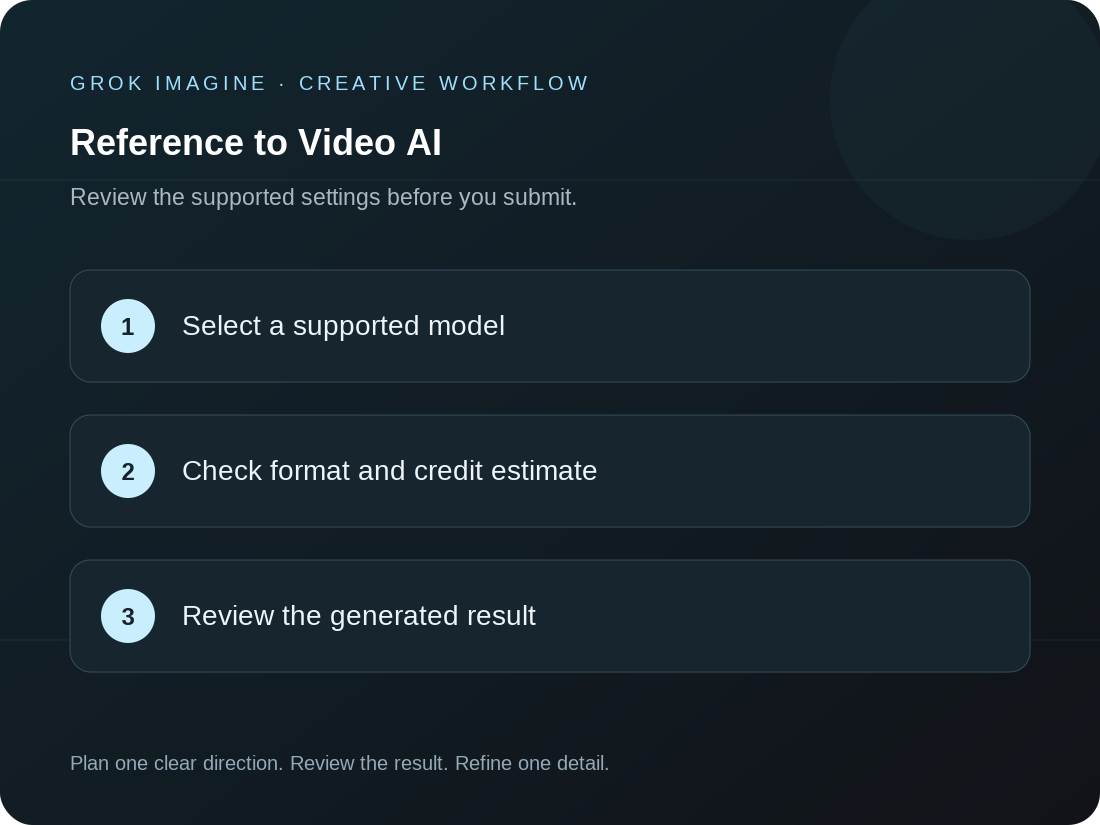
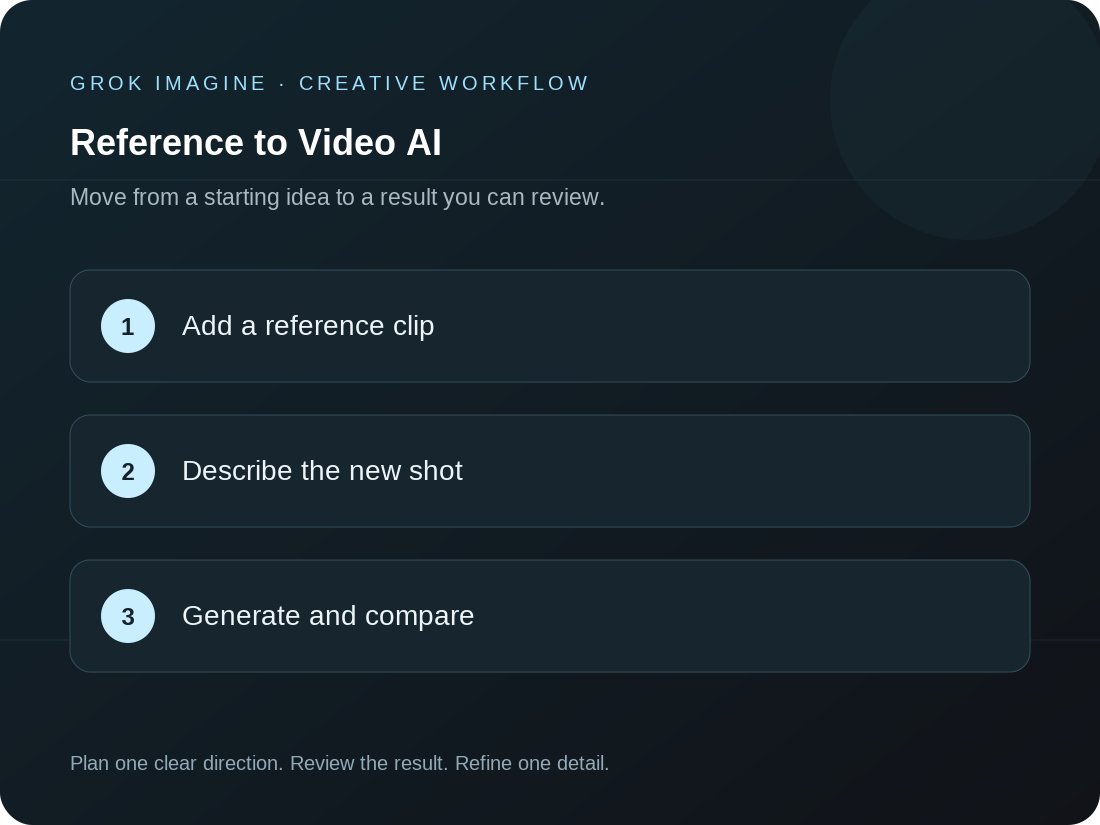
Add a reference clip → Describe the new shot → Generate and compare. Reference media can guide a subject, composition, or visual direction; it does not promise a frame-by-frame copy. Review the result and make sure you have permission to use the source material.
RoomTale
1
Add a reference clip
Upload footage you have permission to use, or select an available clip from your assets.
2
Describe the new shot
Explain the subject, setting, and motion you want the model to explore.
3
Generate and compare
Review supported settings and credits, then compare the new take with your reference.
What reference media can help guide a new scene?
Choose a focused goal for the intended use, make a visual draft you can review, and decide what to change next.
RoomTale
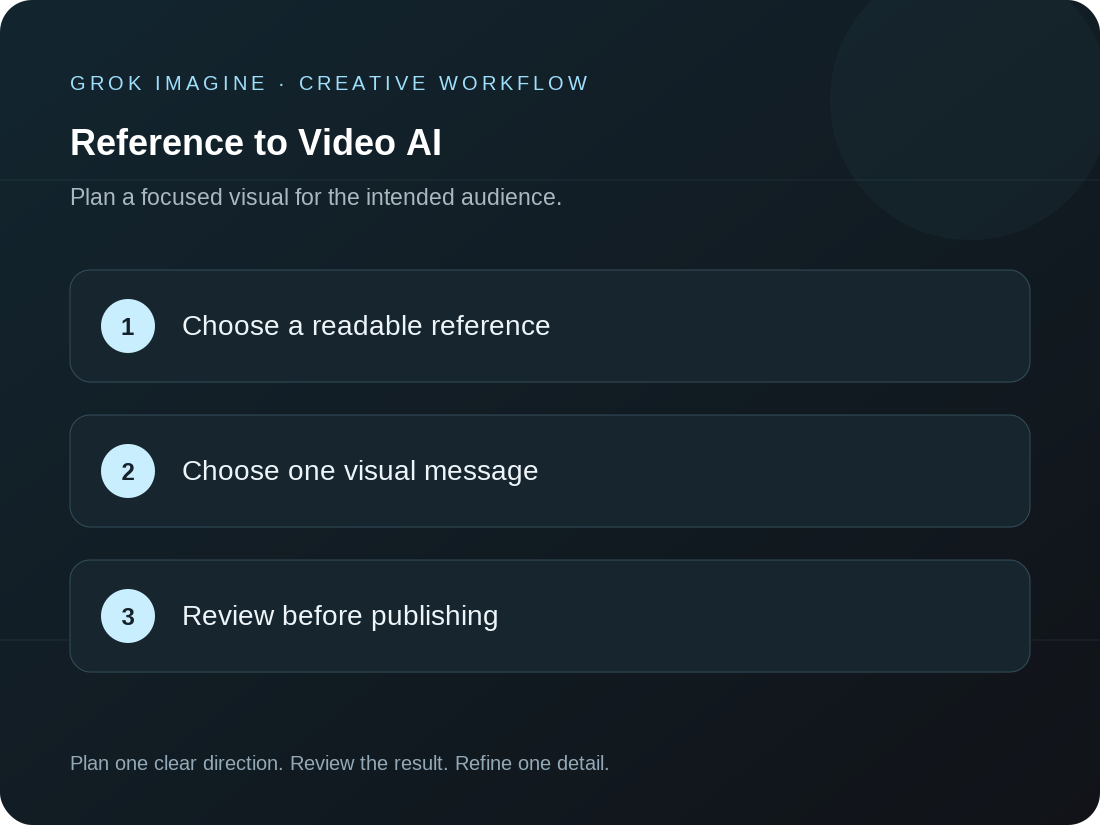
Choose a readable reference
Use the workflow to guide a clip with reference media with one creative goal you can review. Start with a simple input, then adjust the subject, composition, and visual focus. Keep useful prompt wording so the next iteration develops the same direction instead of changing every detail at once.
RoomTale
Describe the new setting
Use the workflow to guide a clip with reference media as a visual draft for a campaign. Decide what the audience should notice first, then check whether the composition fits the intended placement. Review the generated scene before adding final captions, music, brand wording, or publishing details in your editing process.
RoomTale
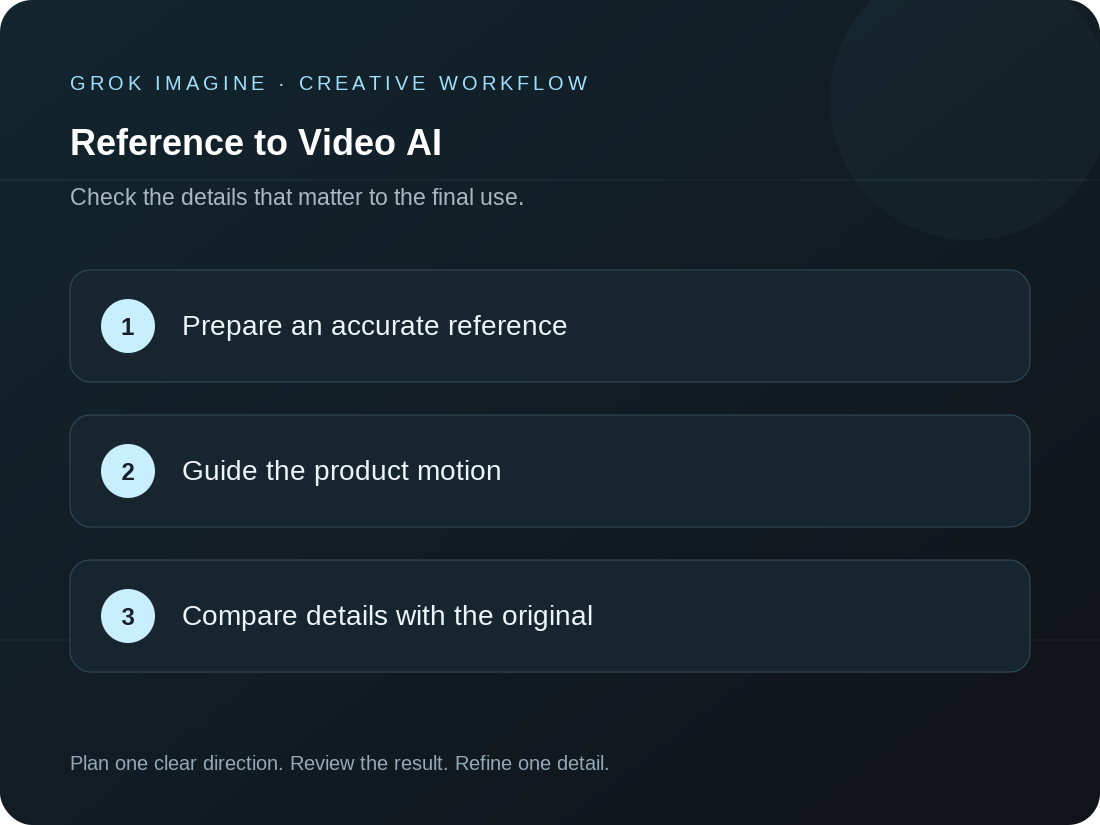
Focus on one action
Use the workflow to guide a clip with reference media with reference material you have permission to use. Identify which product features matter most in the brief. Generated text, proportions, and small textures may change, so compare the result with the original product information before using it in a listing or promotion.
RoomTale
Will the new clip copy the reference?
Use the workflow to guide a clip with reference media from a brief that separates the subject, setting, style, and output goal. Change one major direction at a time and keep a record of the prompt and supported settings. Compare the alternatives against the original visual intent before choosing a version.
What can a focused scene prompt look like?
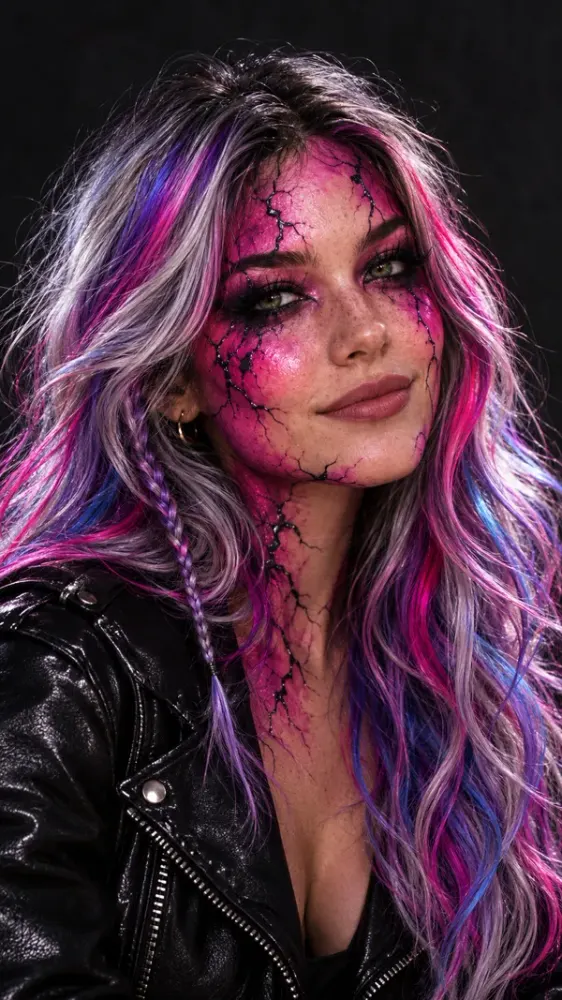
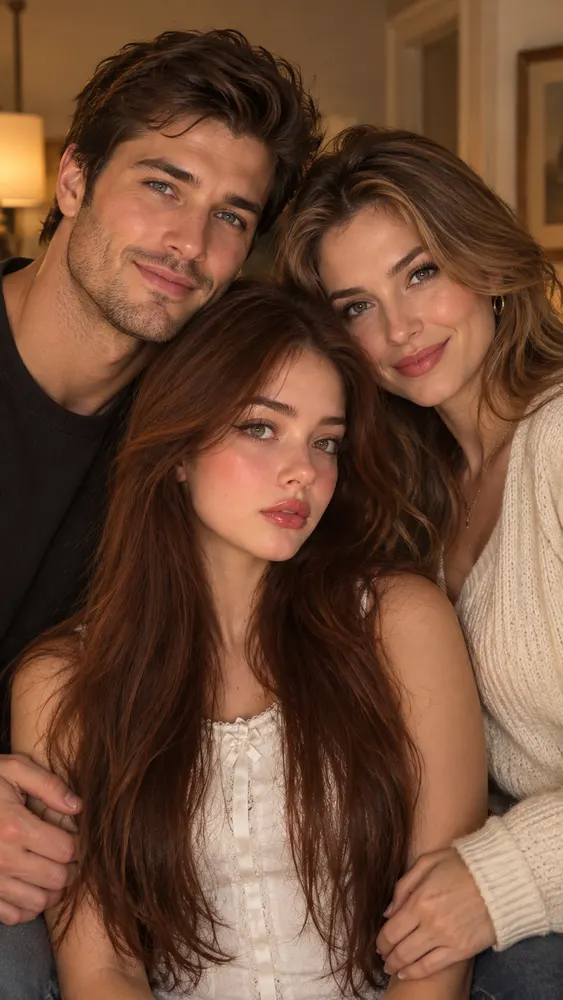
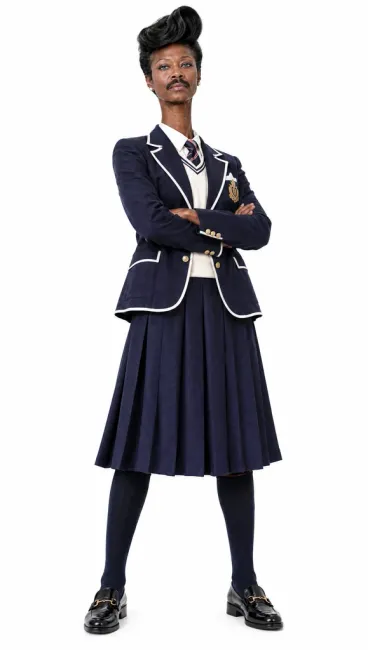
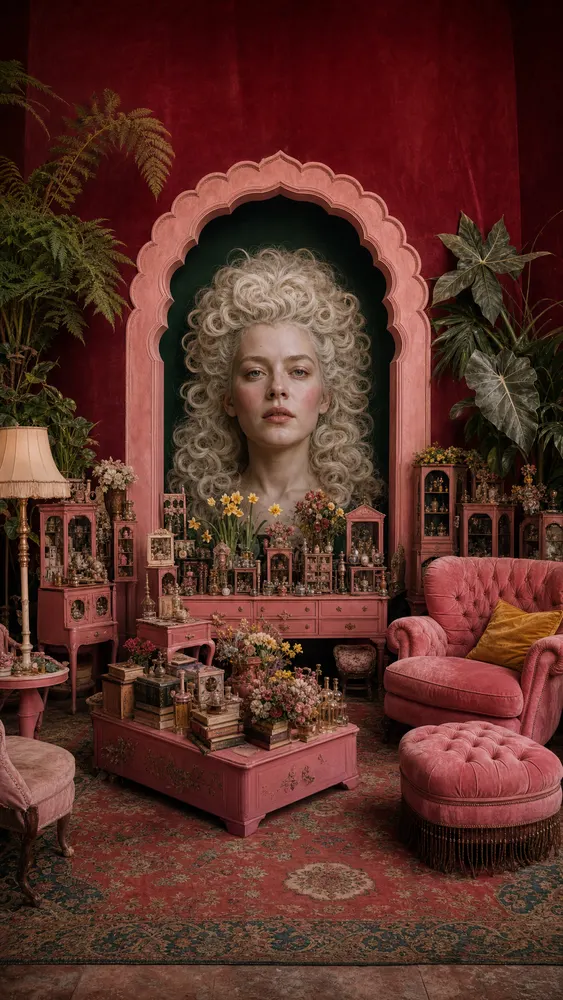
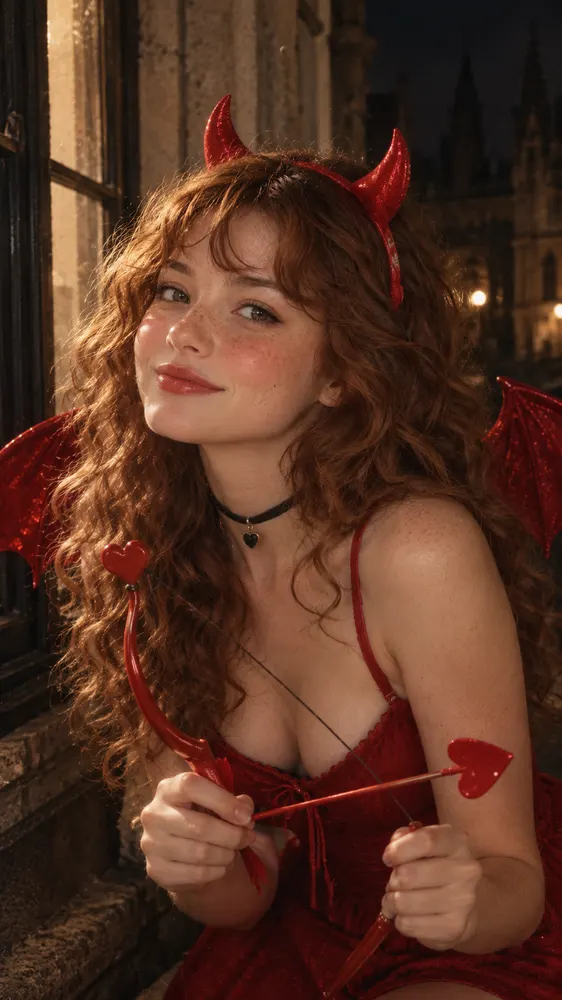
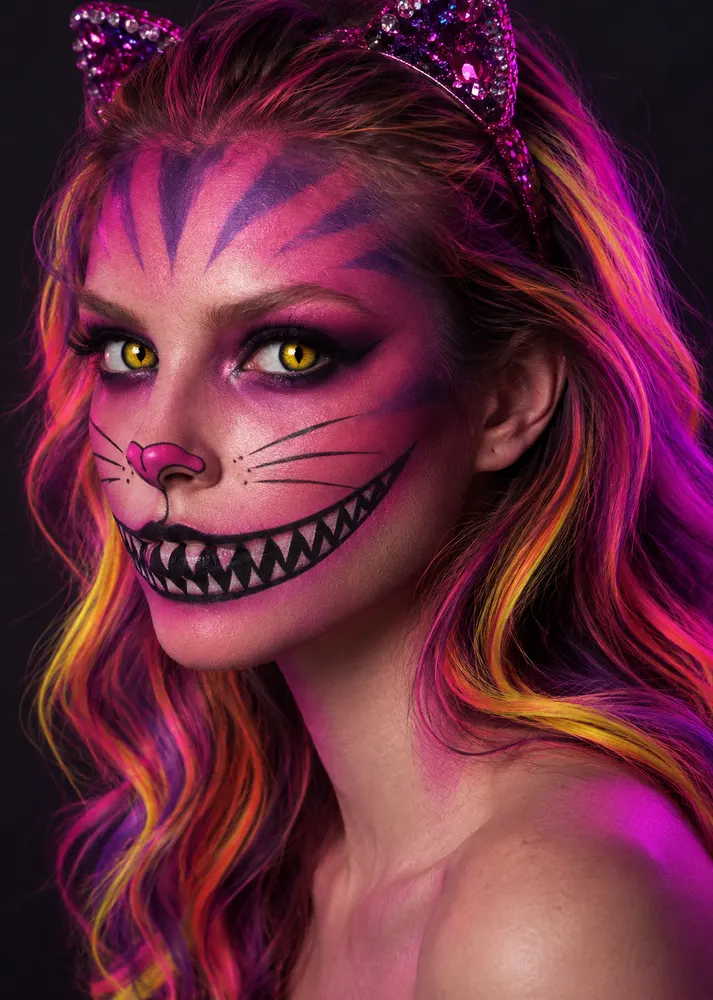
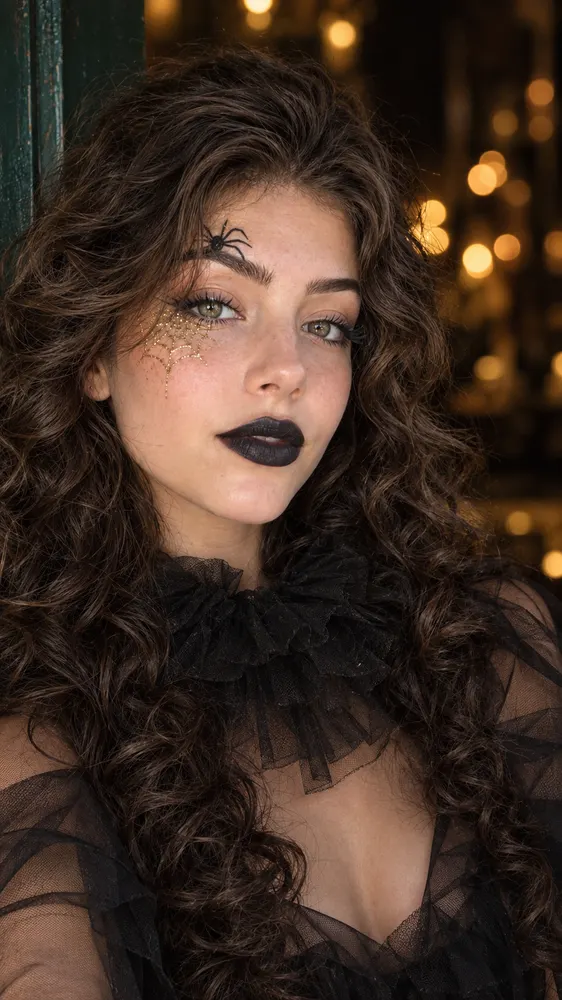
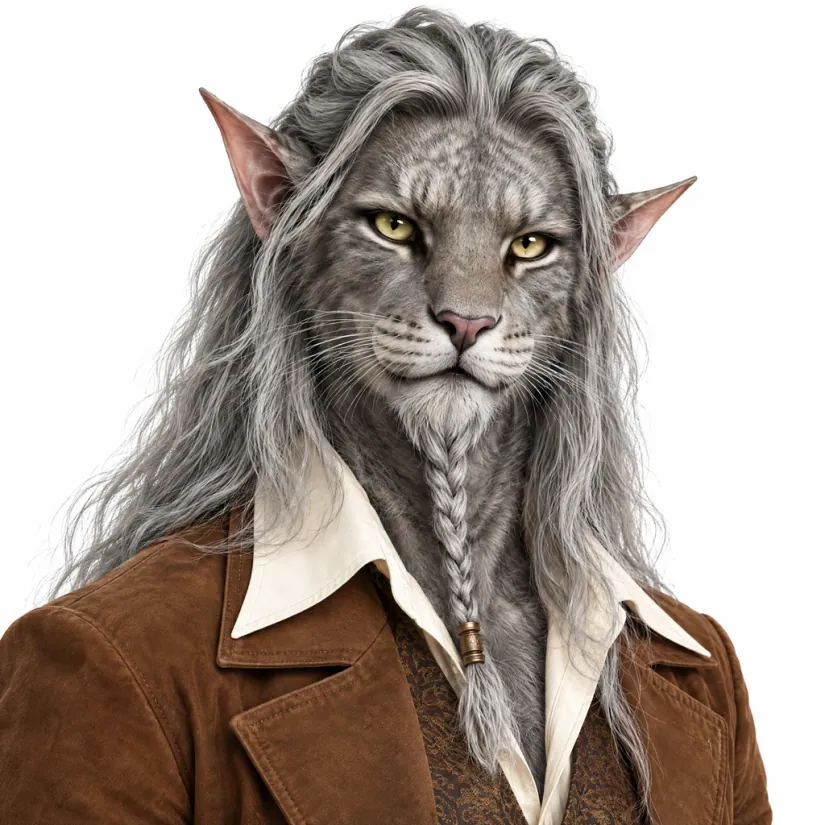
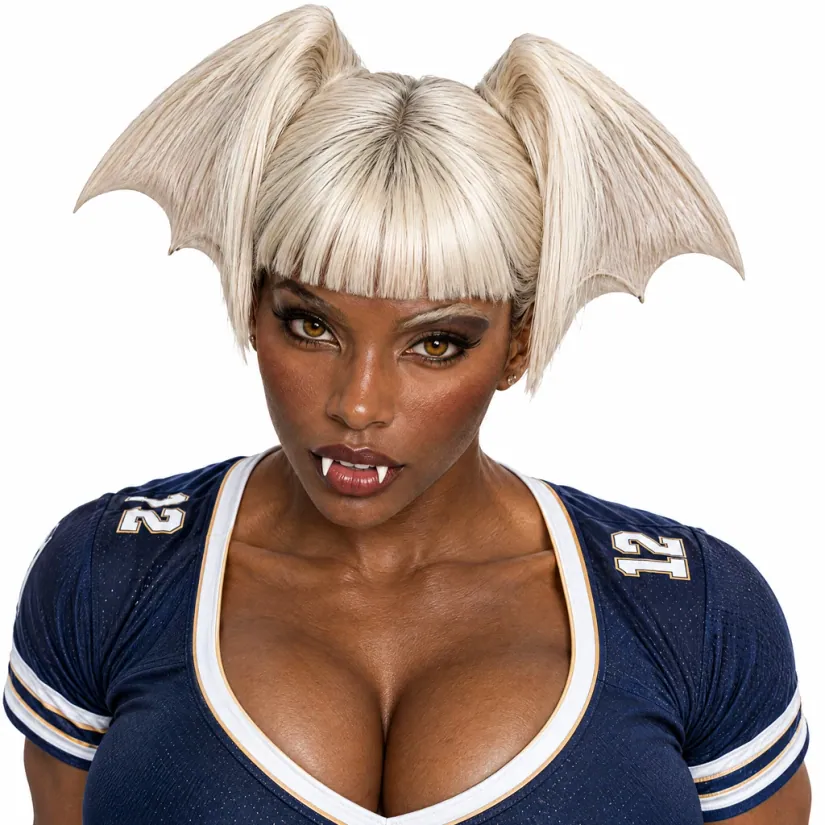
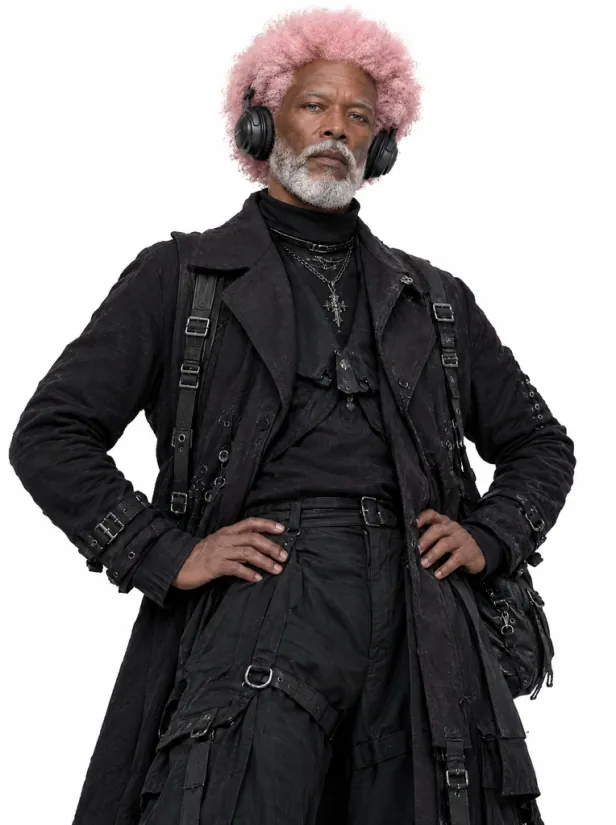
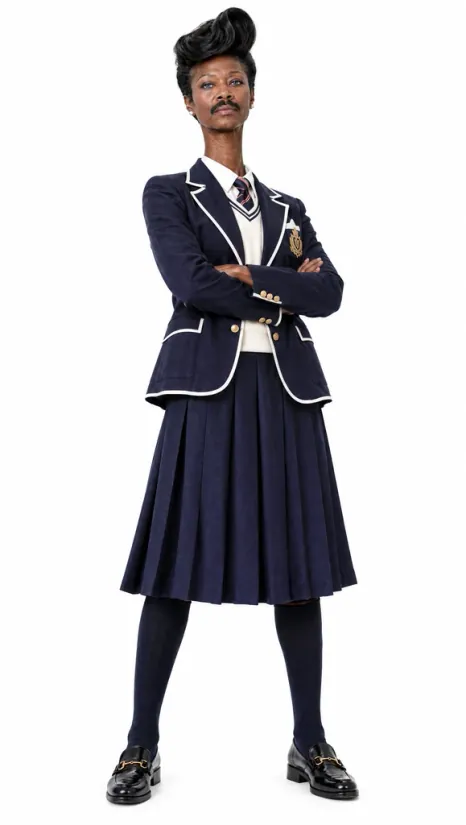
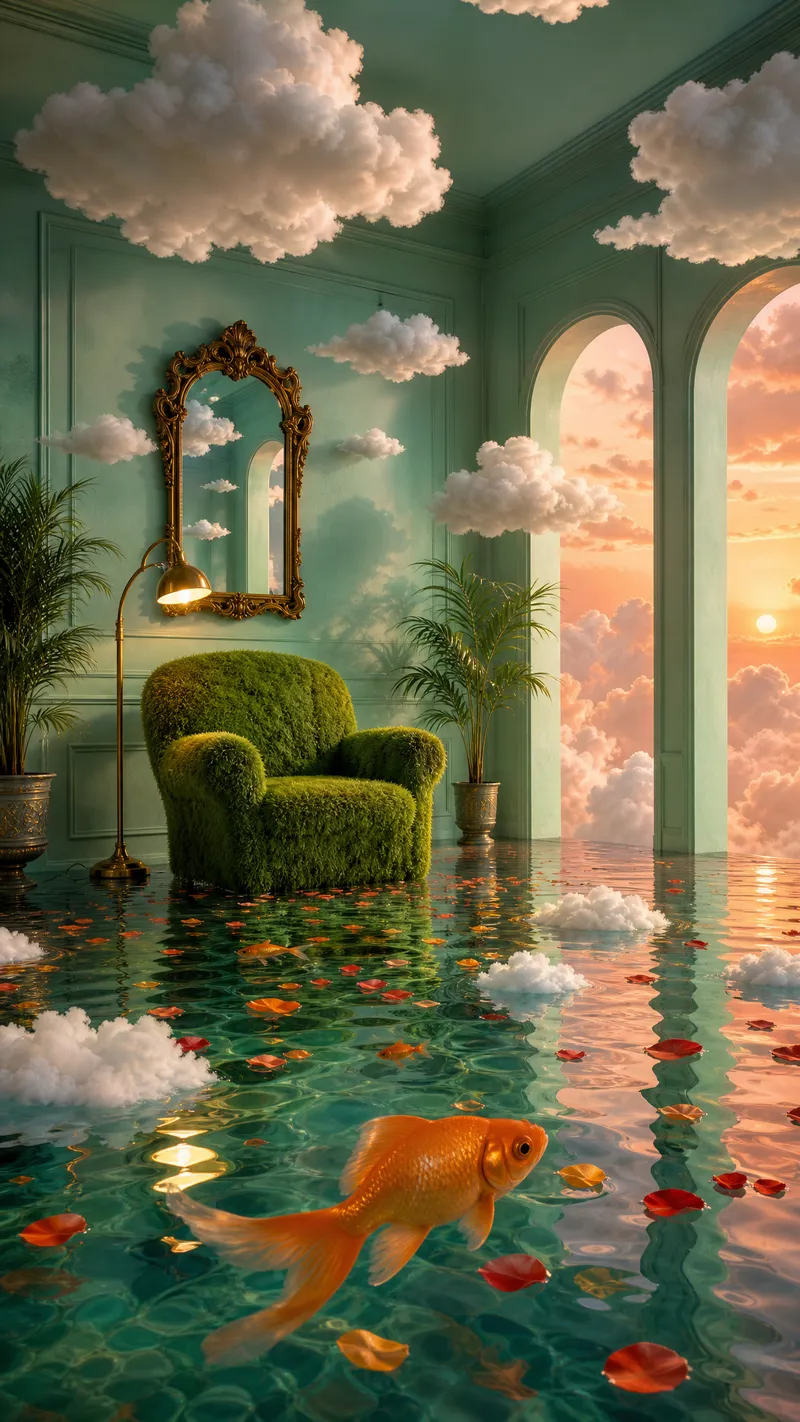
Start with a brief below, then refine one important detail after reviewing the result. The artwork illustrates visual directions; it does not promise a particular model output.
“
Prompt inspiration
Use the reference movement as loose guidance; create a cinematic forest path at dawn with a gentle camera arc
Plans for creators
Grok Imagine pricing for your next idea.
Choose a monthly plan, save with yearly billing, or add one-time credits whenever you need them.
Cancel anytime
Starter
$29.9/month
$29.90 billed monthly
For light creators trying things out
Includes
1,500 credits per month
AI image and video generation
Model-specific settings and credit estimates
Preview and download completed results
Popular
Pro
$49.9/month
$49.90 billed monthly
3.5K8K14K
For weekly creators with steady output
Everything in Starter, plus
3,500 credits per month
AI image and video generation
Model-specific settings and credit estimates
Preview and download completed results
Max
$199.9/month
$199.90 billed monthly
For pros and small studios with heavy needs
Everything in Pro, plus
22,000 credits per month
AI image and video generation
Model-specific settings and credit estimates
Preview and download completed results
Secure payment · Prices shown in USD
Questions to answer before using video references
Review the input requirements, available settings, credit estimate, and result checks before you submit.
This workflow uses uploaded video files or available saved media. A website link in the prompt does not import footage.
Will the result copy my reference exactly?
No. The reference guides a new generation. Timing, composition, and details can change, so review the complete clip.
What makes a useful reference clip?
Choose footage with a visible subject and a clear action or camera move, then describe which parts should guide the new shot.
What reference media can I use?
The reference-video workflow accepts image or video material supported by the composer, with a prompt describing the new direction. Actual inputs depend on the selected model and the upload options shown in the interface.
Will the new clip copy the reference?
Reference media can guide a subject, composition, or visual direction; it does not promise a frame-by-frame copy. Review the result and make sure you have permission to use the source material.
How can I compare model settings?
Select the reference-video workflow to see available models and their settings. Duration, aspect ratio, resolution, and credit estimates vary by model; rely on the options shown before submission.
Grok Imagine Video
Bring a reference to your next idea
Choose a clip with a clear action and describe the new direction you want to explore.